Various calling issues and solutions.
Symptom: Phone shows "No IP address"
Underlying cause: The phone does not have access to the Internet.
-
Check router is on
-
Reboot router
-
Check network cable between handset and router
-
Swap network cable, ideally with one known to be working
-
Reboot handset
-
Factory reset handset
-
Gather environment details (how are things connected, who is internet supplier, what router is being used)
-
If the above have been checked, raise a complaint at support@ipfinity.com
Symptom: Not receiving calls but can dial out
Underlying cause: IPFINITY service cannot reach the phone (dial out can still dial out).
-
Check if the handset is registered (check handset's status page)
-
Check if the device can receive calls within 15 seconds after making an outgoing call: if yes, there is a network "NAT timer issue"; if not, there may be a firewall issue. Please contact your IT resource with this information.
-
Check if outgoing calls end after 30/60/90 seconds or so - determine if there is a pattern
-
Gather environment details (how are things connected, who is internet supplier, what router is being used, and make that your internet is working)
-
If the above have been checked, open a ticket with support@ipfinity.com
Symptom: Not able to make or receive calls
Underlying cause: If this is affecting all phones, there may be a general networking or Internet failure. If affecting only some phones, there may be an issue with your Ethernet switch.
-
Check if the phone has a working Internet connection (try a different port on the switch)
-
Reboot or factory reset the phone
-
Note any error messages
-
Check SIP ALG and firewall - SIP ALG should be disabled and the firewall should not be blocking or forwarding VoIP ports
-
Gather environment details (how are things connected, who is internet supplier, what router is being used, and make that your internet is working)
-
Gather call example(s) and environment details and email support@ipfinity.com
Symptom: Not able to make calls but can receive calls
-
This is an unusual scenario so should be rarely, if ever, encountered
-
Ensure that you are able to call a valid telephone number - try various numbers, such as landline numbers. If calling another country, try a different number in that country. Cell phone numbers in some countries can ring busy if the phone is switched off.
-
If the number is valid, check firewall settings. Are other phones also having this issue?
-
Gather environment details (how are things connected, who is internet supplier, what router is being used, and make that your internet is working), number(s) being called, etc.
-
Gather call example(s) and environment details and email support@ipfinity.com
Symptom: Incoming and/or outgoing calls drop off after a certain, specific amount of time
Underlying cause: a network device is timing out the connection.
-
After 5 minutes, 10 minutes, 30 minutes, etc., calls end abruptly (and this is repeatable).
-
Check your firewall settings. Specifically disable all SIP features in your firewall and router, such as SIP ALG, SIP Helper, etc.
-
Identify if the call timer continues to run or if it's like the call has been hung up (timer stops)
-
Gather call example(s) and environment details and create a ticket at support@ipfinity.com
Symptom: Only one side can hear the other (one way audio) on many or most calls
Underlying cause: a network device is blocking audio traffic in one direction.
-
Reboot your router and/or firewall and the affected phones (amazing how often this fixes things!)
- After reboot try to make some test calls to determine if the issue still exits
- Gather call examples and environment details and raise a complaint at support@ipfinity.com
Symptom: Voice is choppy/cuts in and out/sounds like underwater/robotic/Darth Vader/on the moon
-
Check for general faults with the Internet: run some speed tests, see if page loads are unusually slow, for example.
- Confirm that the Nightingale is installed in circuit; if you do not have a Nightingale please contact your IT resource for diagnosis/solution.
-
Determine if the issue is directional:
-
If you are having trouble hearing the other party clearly, then it's a download issue
-
If you can hear the other party, but the other party cannot hear you, then it's an upload issue
-
-
It could be that other party that is having phone issues - so rule this out with another party.
- Gather call examples and environment details and send an email at support@ipfinity.com
Symptom: Phantom/Ghost/Spam/Robocalls
-
Identify persistent robocalls or harassment calls by emailing support@ipfinity.com (provide date, time and caller-id).
-
Incoming calls with strange caller IDs, could be letters, single-digit, lots of zeros, etc. are indicative of a spam call. IPFINITY configures your phones to only accept traffic from our infrastructure. However, if these calls are getting through, please consult with your IT resource about your firewall settings (do NOT use any SIP layer blocking).
- Provide call examples and environment details via email to support@ipfinity.com
Symptom: not in the list
-
End-users complains that they are “unable to transfer calls” or similar
-
Run through basic checks
-
Is transferring handset (handset with call) able to make internal calls otherwise?
-
Is the transfer target handset (handset that will receive calls) able to make and receive internal calls?
-
Check registrations (Status → Registrations)
-
-
If basics are OK then perform standard symptoms and obtain call example
-
The exact time of call and time zone
-
Transferring handset extension
-
Transfer target extension
-
Transferred party's (the original caller) phone number
-
Any error messages on the handset?
-
What transfer procedure was followed at call transfer
-
Intermittent or regular?
-
Easily reproduced?
-
Description of symptoms beyond a mere “it doesn't work”
-
- Raise a complaint at support@ipfinity.com
Please provide the below information via email in order to resolve the problem asap.
-
Name of person reporting fault and company name
-
Contact details:
-
Telephone number
-
Email address
-
-
Call example - this is mandatory
-
Date and exact time of the call
-
Number dialed
-
Calling number (if available)
-
The direction of call (who is making the call)
-
Explanation of symptoms
-
-
Frequency of problem
-
When was it first noticed to happen
-
When was the service last known to be working
-
How many users are affected (if on Multi-User Hosted VoIP)
-
Who is the IT person
-
What router is being used
-
What handset is being used
- What are the mac and serial no of that handset ( In the case of a hardware-based handset)?
IP Phone Troubleshooting
Symptom: Phone does not power up
-
Does device use PSU (power supply) or PoE (power over ethernet)?
-
If PSU:
-
Swap with other known working PSU, if available
-
If it powers up, PSU is faulty
-
If it does not power up, handset is faulty
-
-
Ensure that known working socket is used also!
-
-
If PoE
-
Verify the handset is plugged into a PoE port (with some switches not all ports are PoE enabled)
-
Swap port with known working port (such as swapping handset to another socket)
-
If handset powers up then PoE switch either faulty, not PoE enabled or not PoE port
-
If handset does not power up then handset is most likely faulty.
-
-
-
if the problem still exsit then raise a complaint at support@ipfinity.com
Symptom: Phone says 'Initializing Network' or similar
- This symptom is when the handset does not get an IP address - the message on the handset will vary depending on the make and model. It may say “network unavailable” or “unable to obtain IP” or similar.
-
Swap port with known working network port
-
if it now works, then the local equipment is faulty
-
if it still does not work, and the network port definitely works (email ipfinity provide MAC/Serial details)
-
-
Swap the handset with another working handset
-
if the original handset starts to work and the swapped handset stops working then it's an issue with network cable or network port
-
if the original handset still does not work and the swapped handset continues to work then it's a hardware issue so raise claim via email support@ipfinity.com with details and provide MAC/Serial details)
-
Symptom: Auto-provisioning not working
- Use the following as guidance if a handset is not auto-provisioning. In most cases, the IPFinity experience is literally “out the box”, where a customer receives a handset supplied by us and they simply plug it into their network and it “just works”.
- It rarely is the case that it simply doesn't quite work.
-
Check handset gets IP address
-
If NO then check correct cable incorrect port etc (follow on in Hardware above)
-
Check DHCP allocation table (try rebooting router or office server responsible for DHCP allocation)
-
Verify DHCP dialogue take place (run Wireshark in promiscuous mode on network or take PCAP from handset)
-
-
Check internet works (have computer in same network run tests against dynamic content - try beta.speedtest.net )
-
Check DNS works
-
Check for DHCP options (ie option 150 or option 66) - verify what router customer is using on local network - rule out conflicting provisioning set-ups
-
Confirm whether only a single device is problematic, or a few or all of them (if more than one located on site)
-
Raise a complaint at support@ipfinity.com
Fax Troubleshooting
1. If you are having trouble faxing to a specific fax number, call the number from a phone and check if it is a fax number (you should hear a fax-tone).
2. If you are having trouble faxing to any number, try "faxing" to your phone (e.g. dial your cell phone or office line from your fax machine). You should receive a call and hear a fax tone. If not, check your fax machine's connection to the ATA and check that the ATA is online. Also check for any loose cables: Fax, ATA, router etc.
3. To confirm if your ATA has a functioning Internet connection you could connect another device into the jack that is providing the ATA with Internet.
4. If you need to, power cycle your router to re-establish an Internet connection. This can be done by unplugging the device for 30 seconds and plugging it back in.
5. Check the fax machine's settings.
6. Contact IPFINITY Support if the fax is still not working after following the procedures above. Please tell us the steps you took and the results you are getting.
Cloud Softphone Troubleshooting
Symptom: Not receiving any calls
-
Switch from mobile data to Wi-Fi or vice-versa. Example, if you are using Wi-Fi then disable Wi-Fi on your phone to force the use of mobile data.
-
If doing this resolves the issue, then it indicates an issue with your current network (Wi-Fi or cellular).
-
Turn off your modem and/or router for 5 min then turn it on again.
- if the issue still exits then gather call example ,sip log and environment details and raise a complaint at support@ipfinity.com
- To collect the sip log , please follow the below steps
Enabling Troubleshooting log: For Android Devices
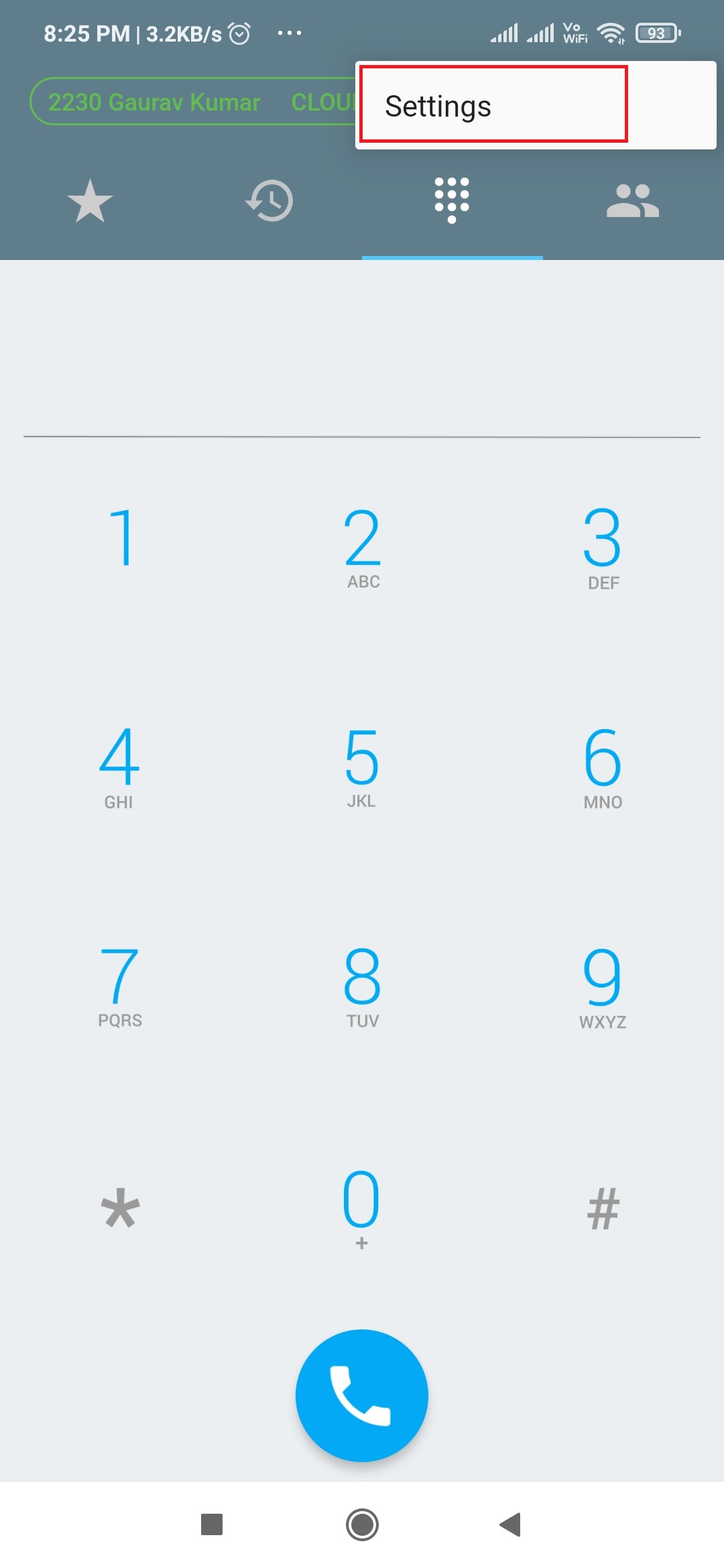
- Click on the three dots on the upper right-hand corner of the screen then tap on Settings
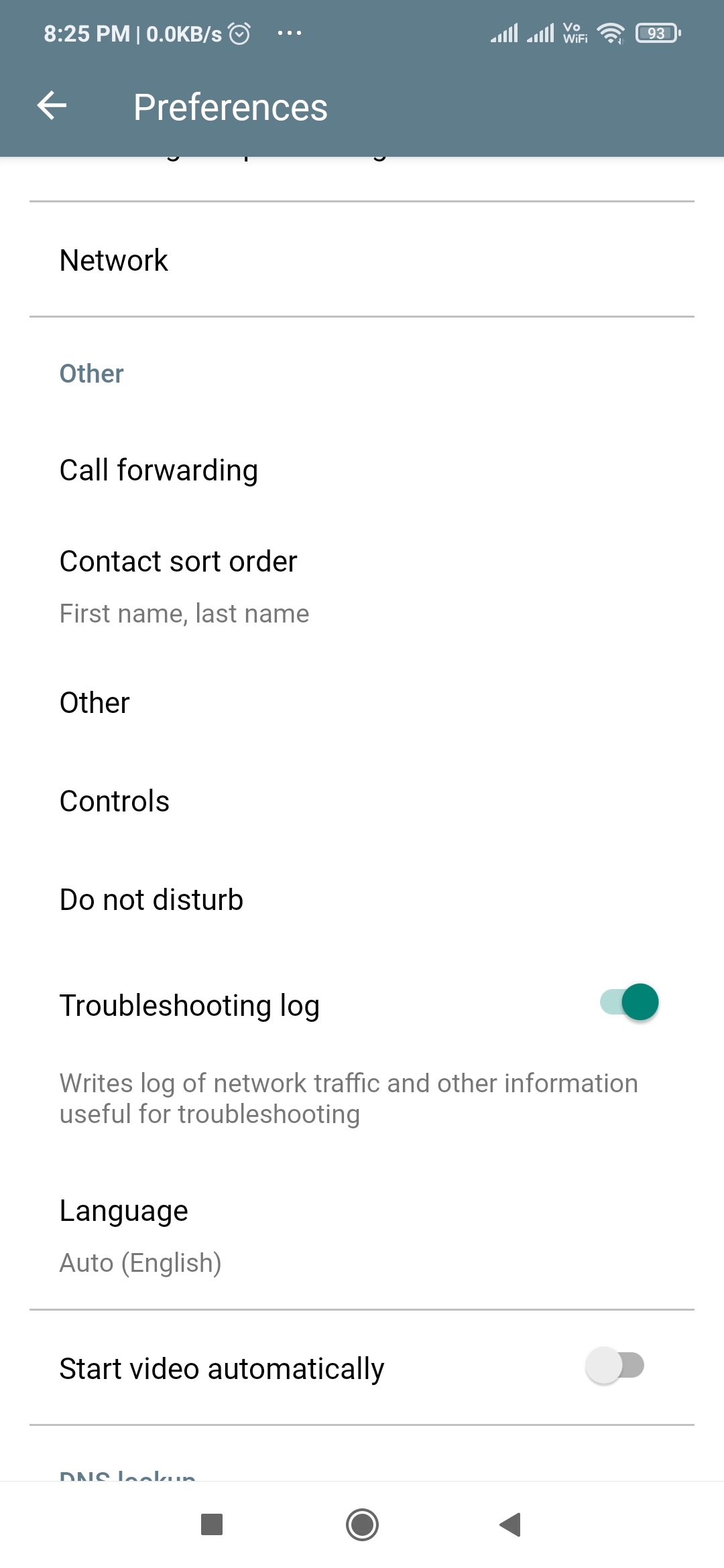
- Tab on Preferences

- Enable the Troubleshooting logs
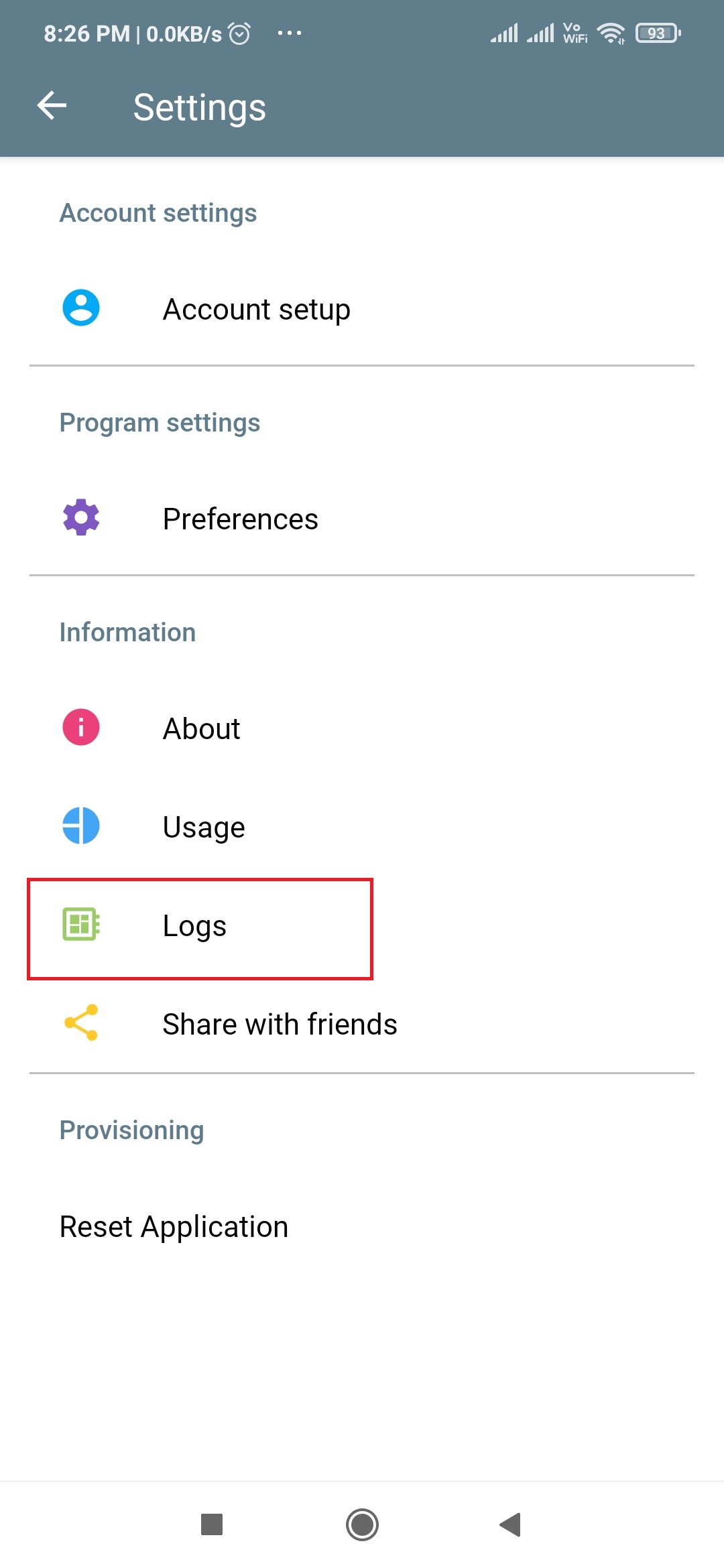
- Tap Back under the Setting, you will see the new option Logs Tap on that
- Tap on each tab (Device, SIP, Android) and share the logs with IPFINITY (see following steps)
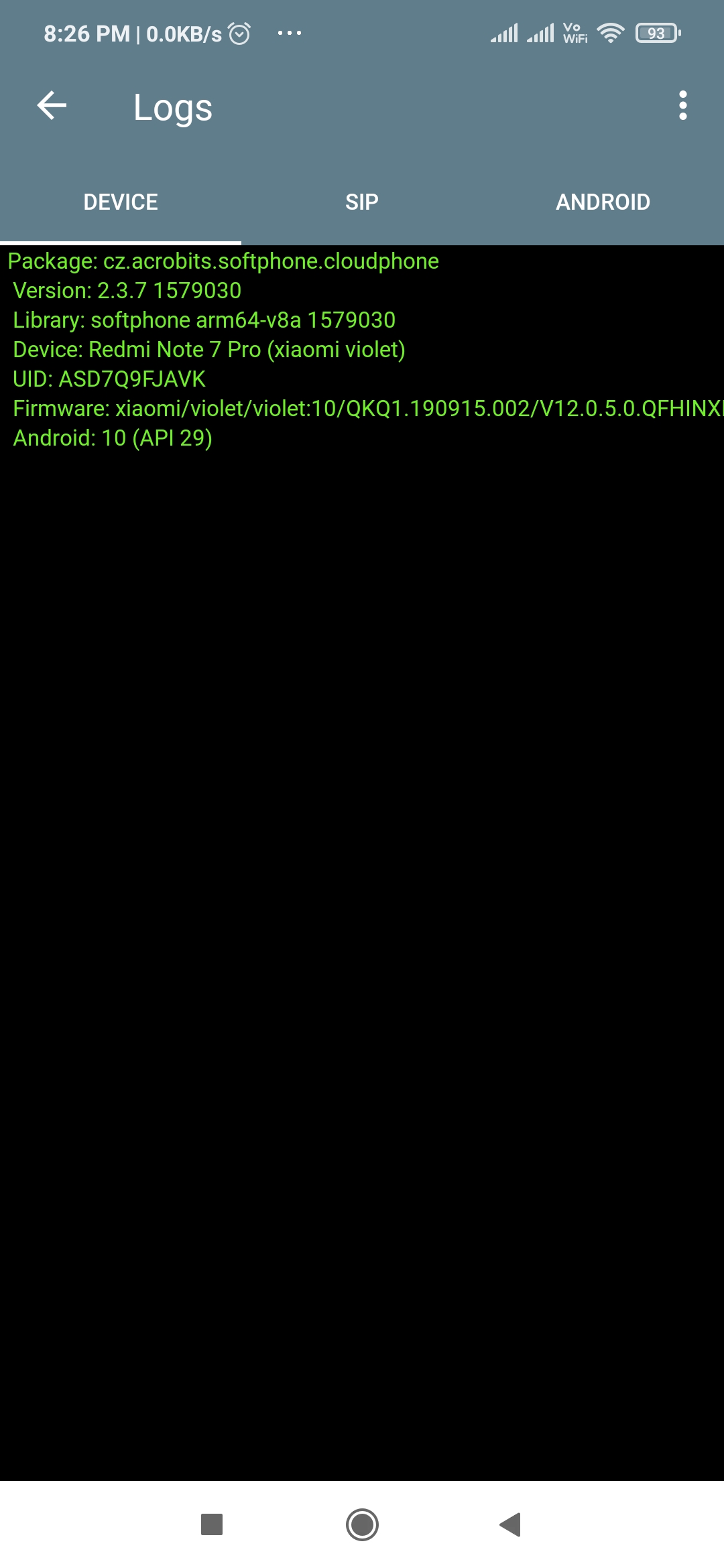
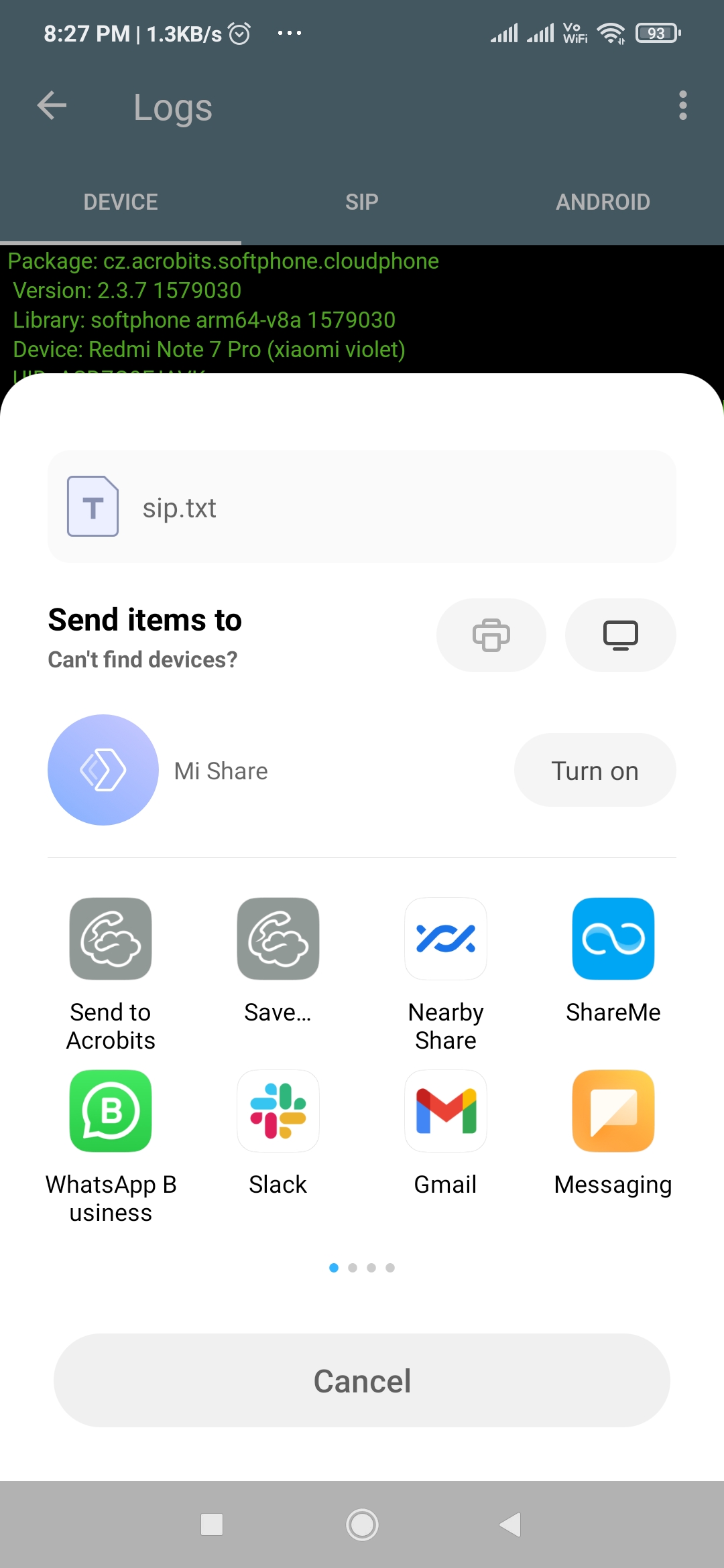
- To share tap the three dots on the upper right-hand corner and then tap Share
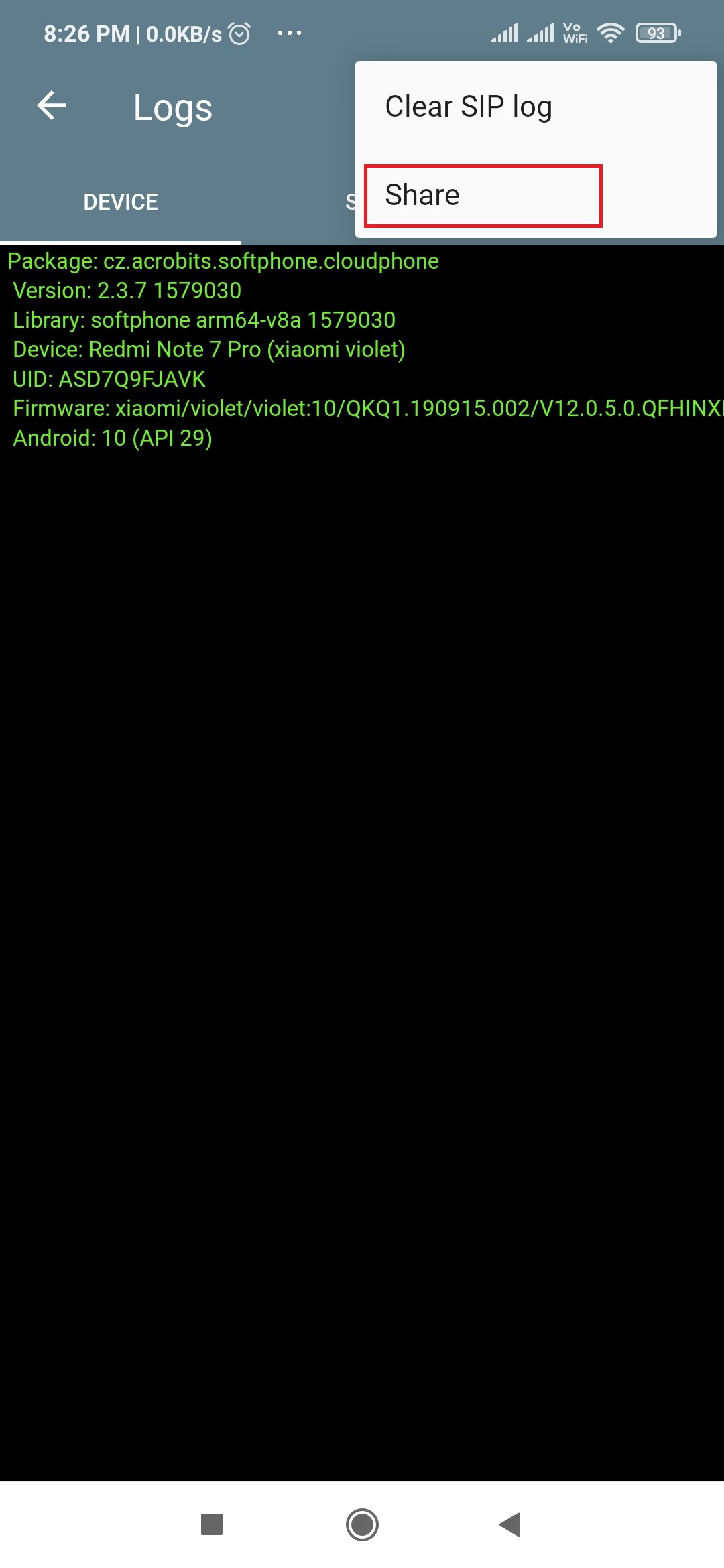
- Share the logs by emailing us at support@ipfinity.com
Subject should be (<Company name> <Log type> <User Name> )
(For example ABCCommunication SIP Sara)
Enabling Troubleshooting log: For iPhone (iOS)
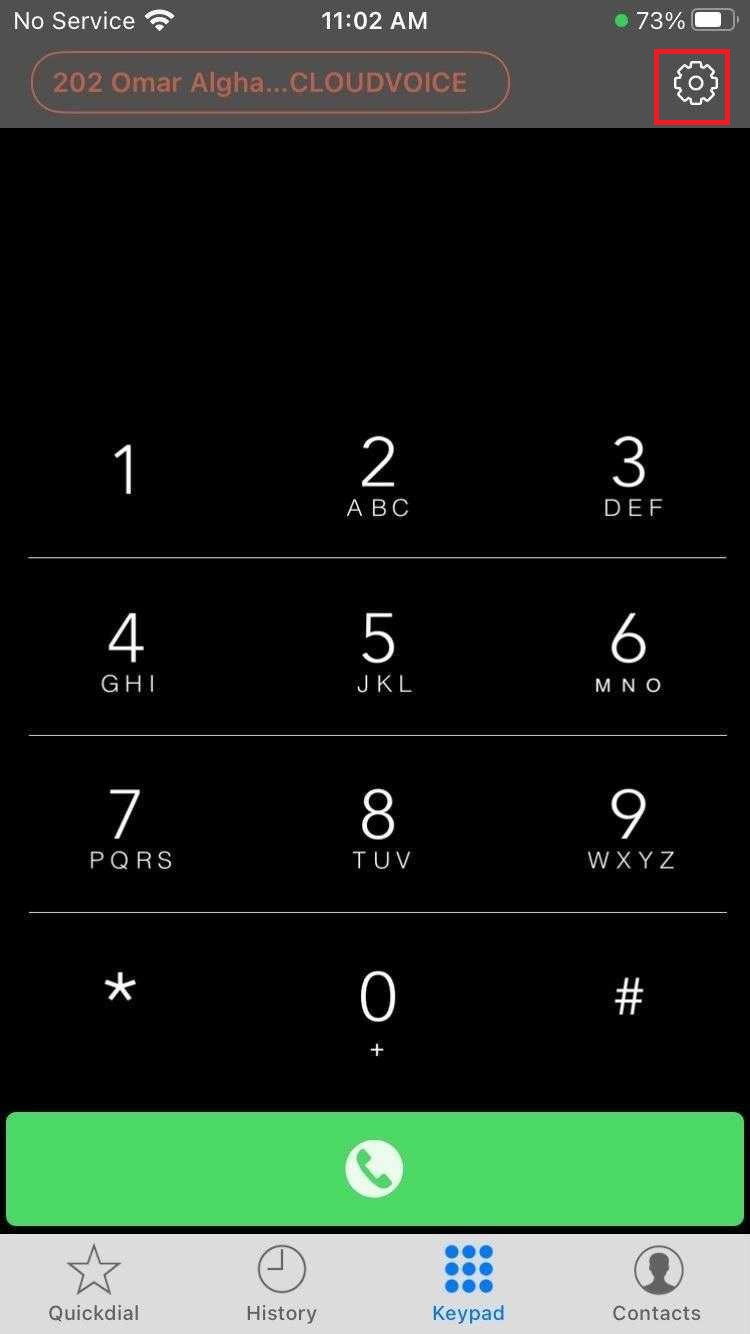
- Tap on gear icon for Settings
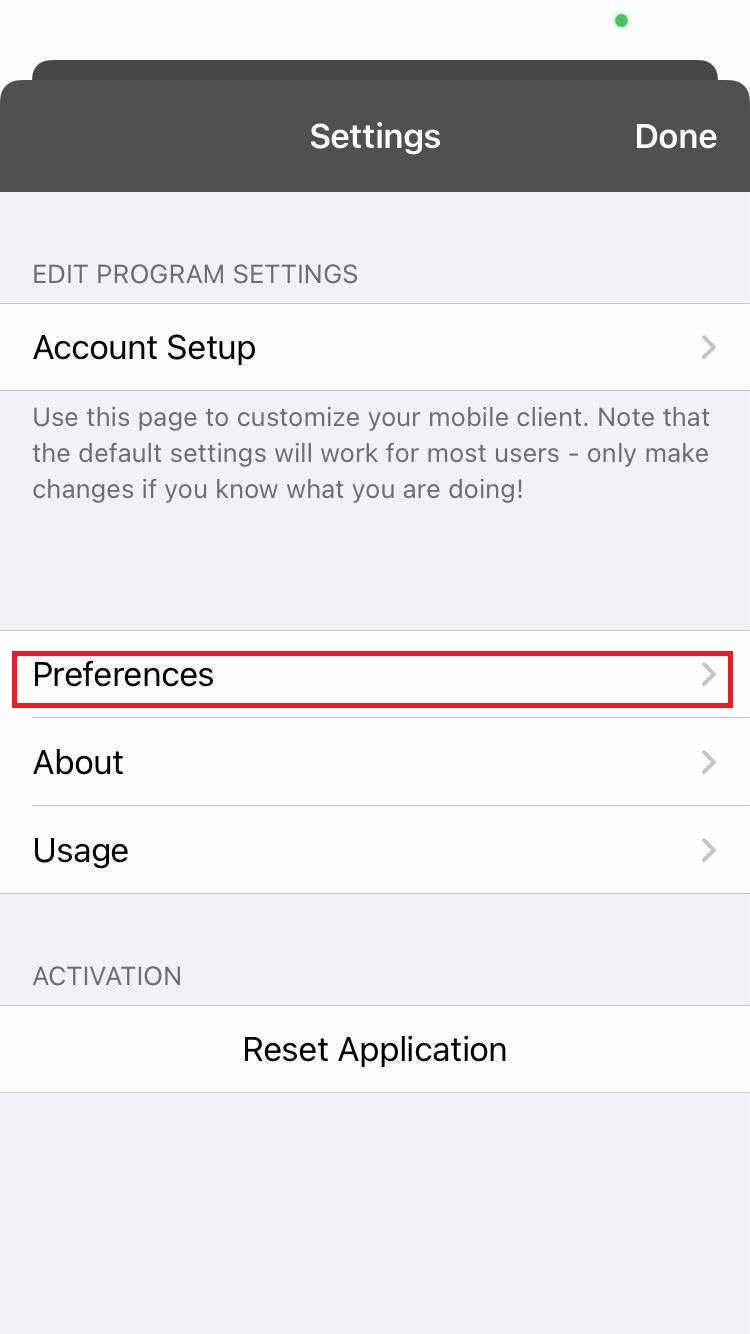
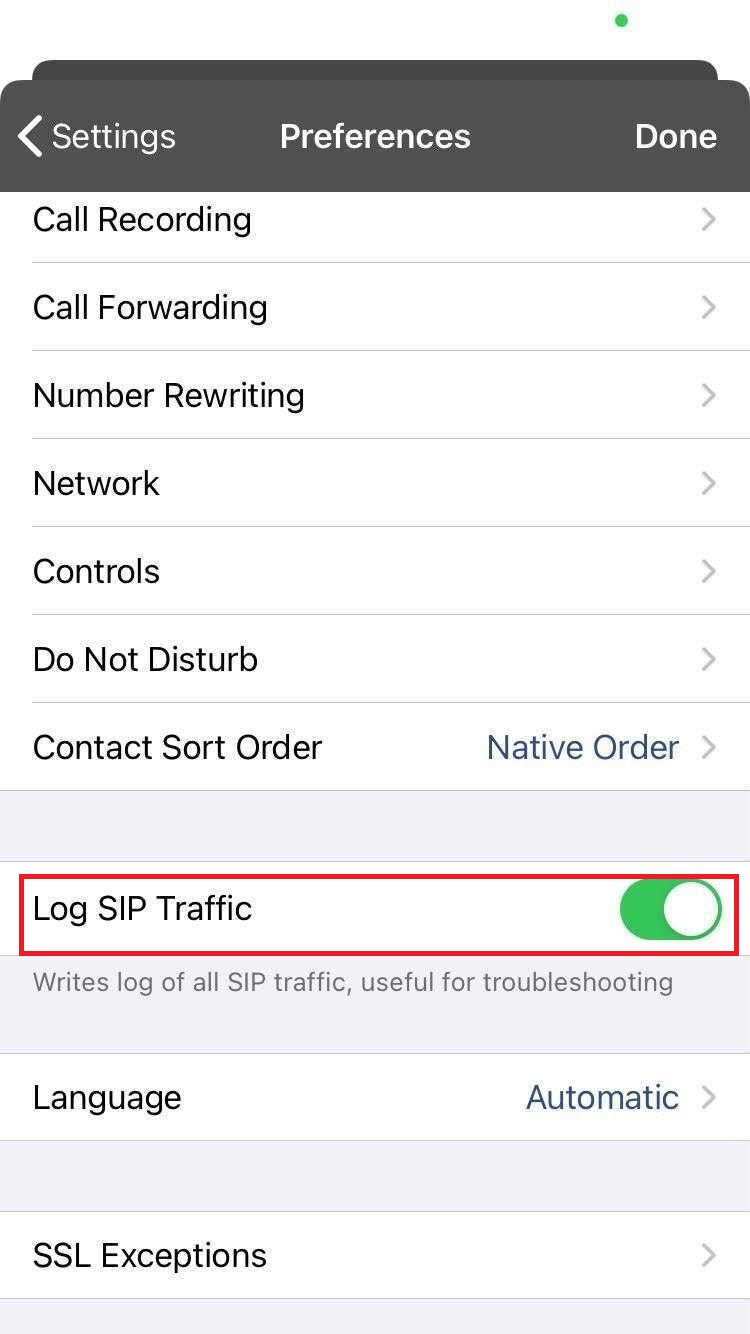
- Tap on Preferences
- Enable log SIP Traffic
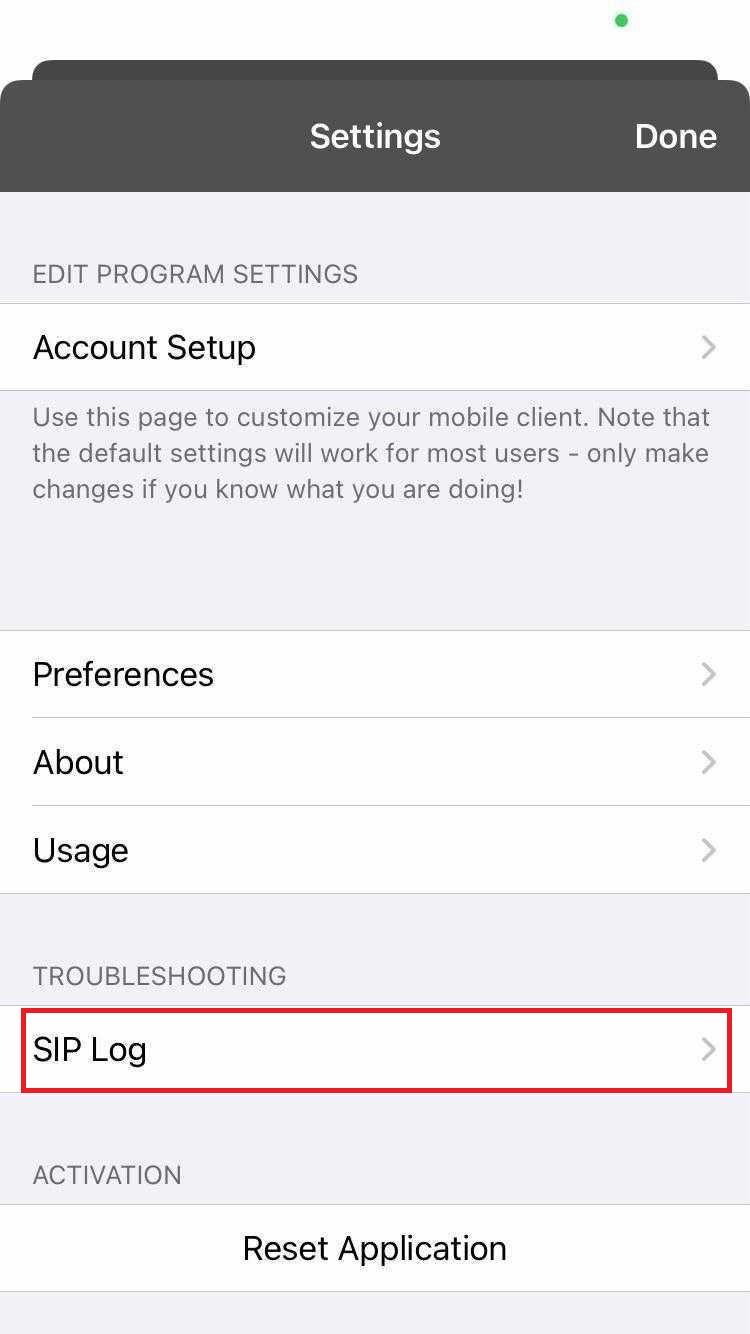
- Go back and tap on the SIP log
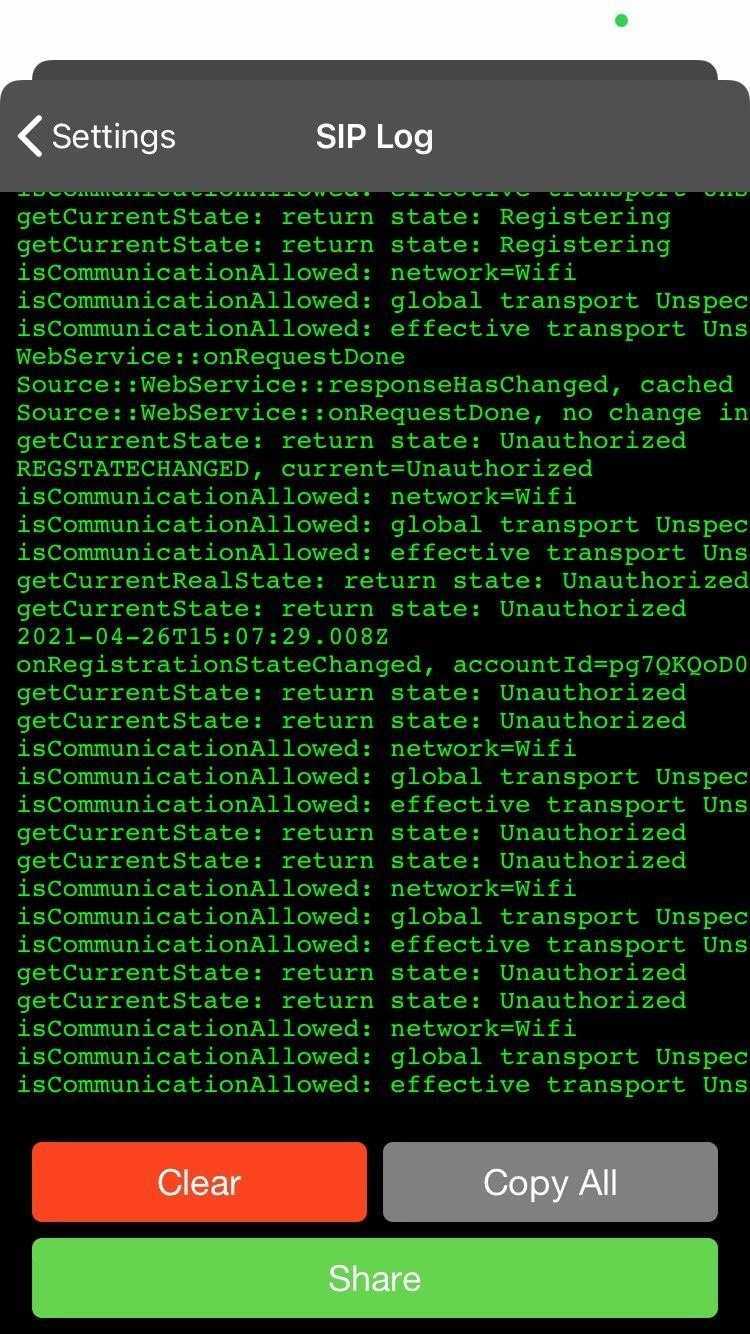
- Example screenshot of the SIP Log
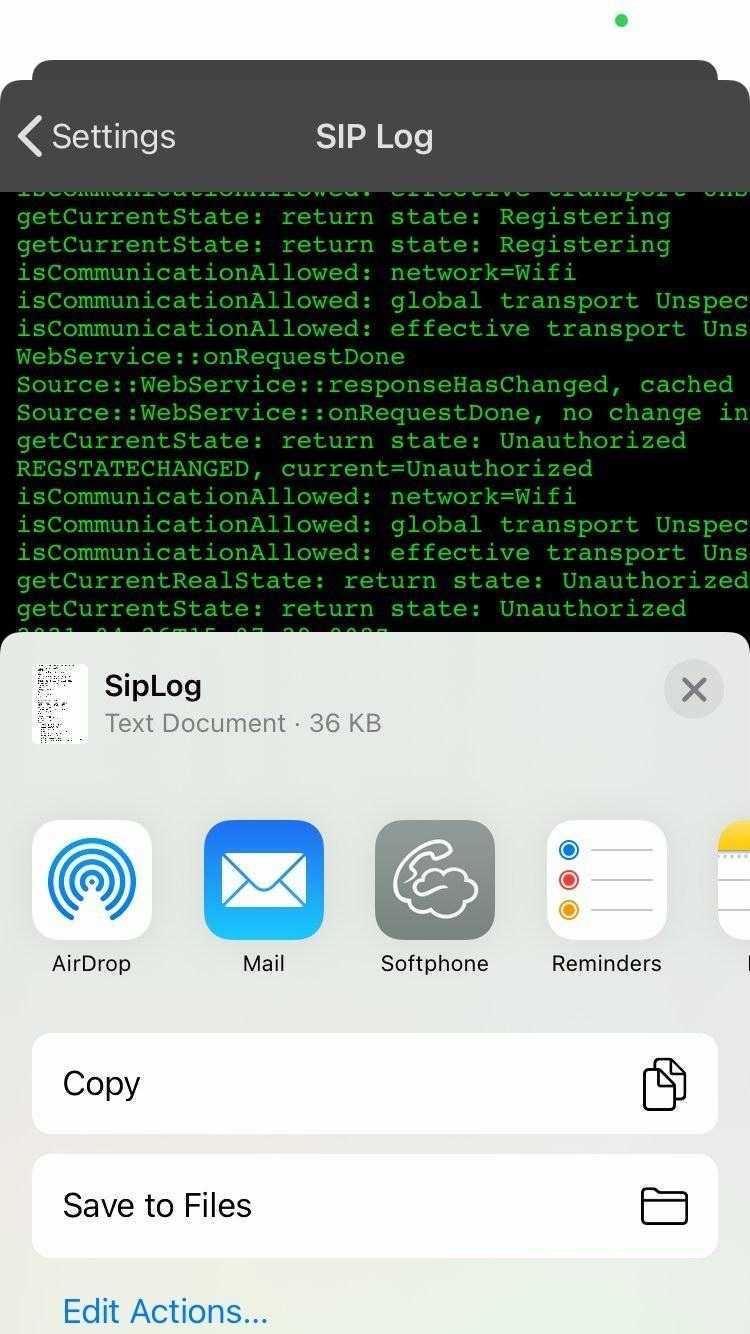
- Share logs by emailing us at support@ipfinity.com
Subject should be (<Company name> <Log type> <User Name> )
(For example : ABC Communication SIP Sara)
If you have any questions, please contact support@ipfinity.com or call us at (416) 900-1416 Ext. 2.
Symptom: Wi-Fi is not working
-
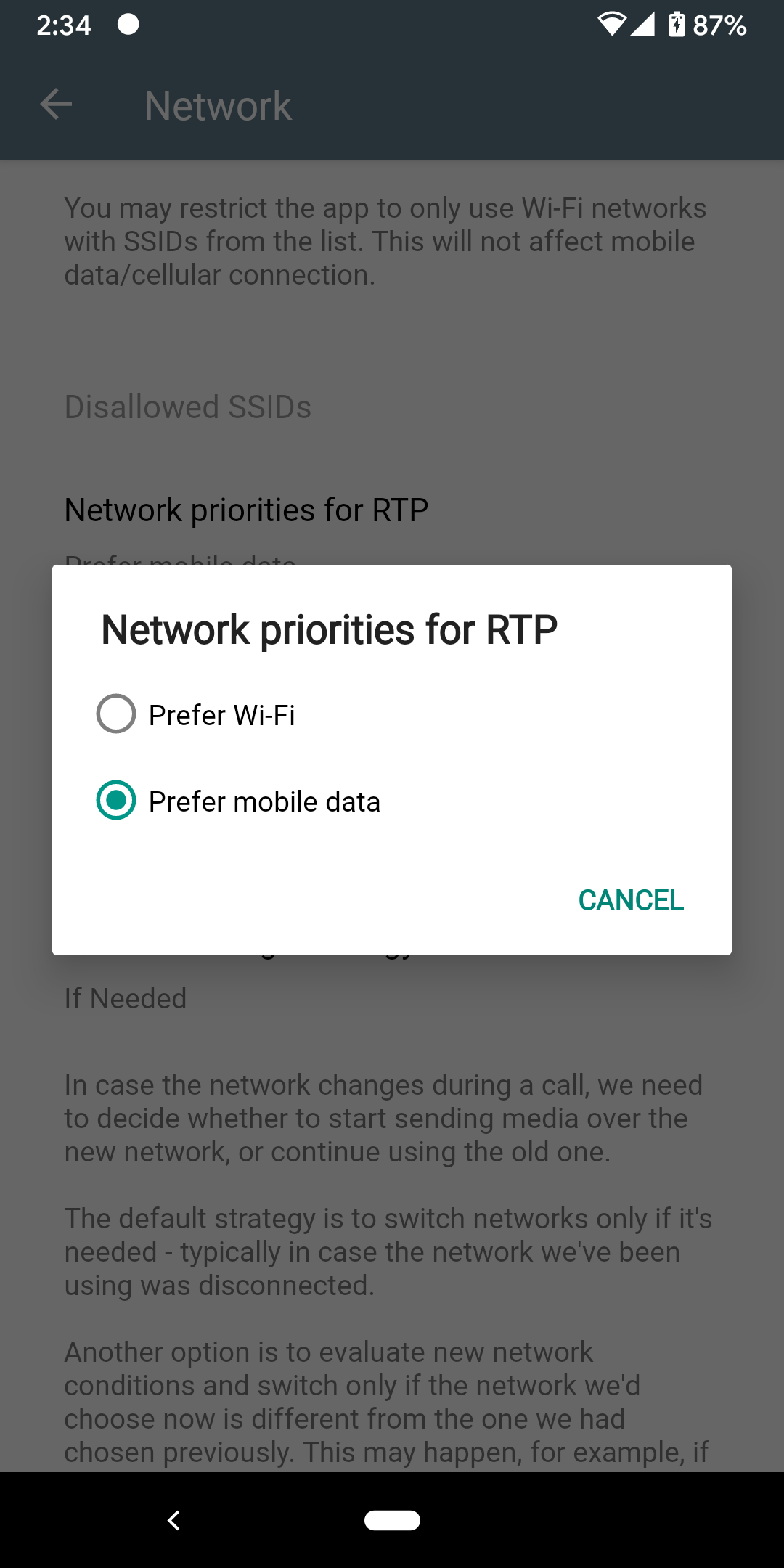
When your Wifi connection is not strong, forcing the Cloud Softphone app to use Mobile Data will in many cases result in clearer call audio. Below is a quick guide to setting Mobile Data as the preferred method of connection. Keep in mind your data usage will be billed by your cell phone carrier.
Android
- Open Cloud Softphone App
- Select the 'three dot' menu on the upper right side of the screen
- Select 'Settings'
- Select 'Preferences'
- Select 'Network'
- Then click on 'Network Priorities for RTP' (select the bold text, not the greyed out paragraph beneath it)
- Finally, select 'Prefer Mobile Data'
Apple iOS
- Open Cloud Softphone App
- Select the 'gear icon' on the upper right side of the screen
- Select 'Preferences'
- Select 'Network'
- Then click on 'Network Priorities for RTP' (select the bold text, not the greyed out paragraph beneath it)
- Finally, select 'Prefer Mobile Data'
The final step for both types of devices should look like this:
0 Comments