Troubleshooting (Step 1)
Switch from mobile data to Wi-Fi or vice-versa. Example, if you are using Wi-Fi then disable Wi-Fi on your phone to force the use of mobile data.
If doing this resolves the issue, then it indicates an issue with your current network (Wi-Fi or cellular).
Turn off your modem and/or router for 5 min then turn it on again.
Troubleshooting (Step 2)
Reboot your device.
- For Android users: Press and hold the screen lock (or power button), then tap on reboot or restart
- For iPhone users: Press and hold the power button, then slide to power off
Troubleshooting (Step 3)
Enabling Troubleshooting log: For Android Devices
- Click on the three dots on the upper right-hand corner of the screen then tap on Settings
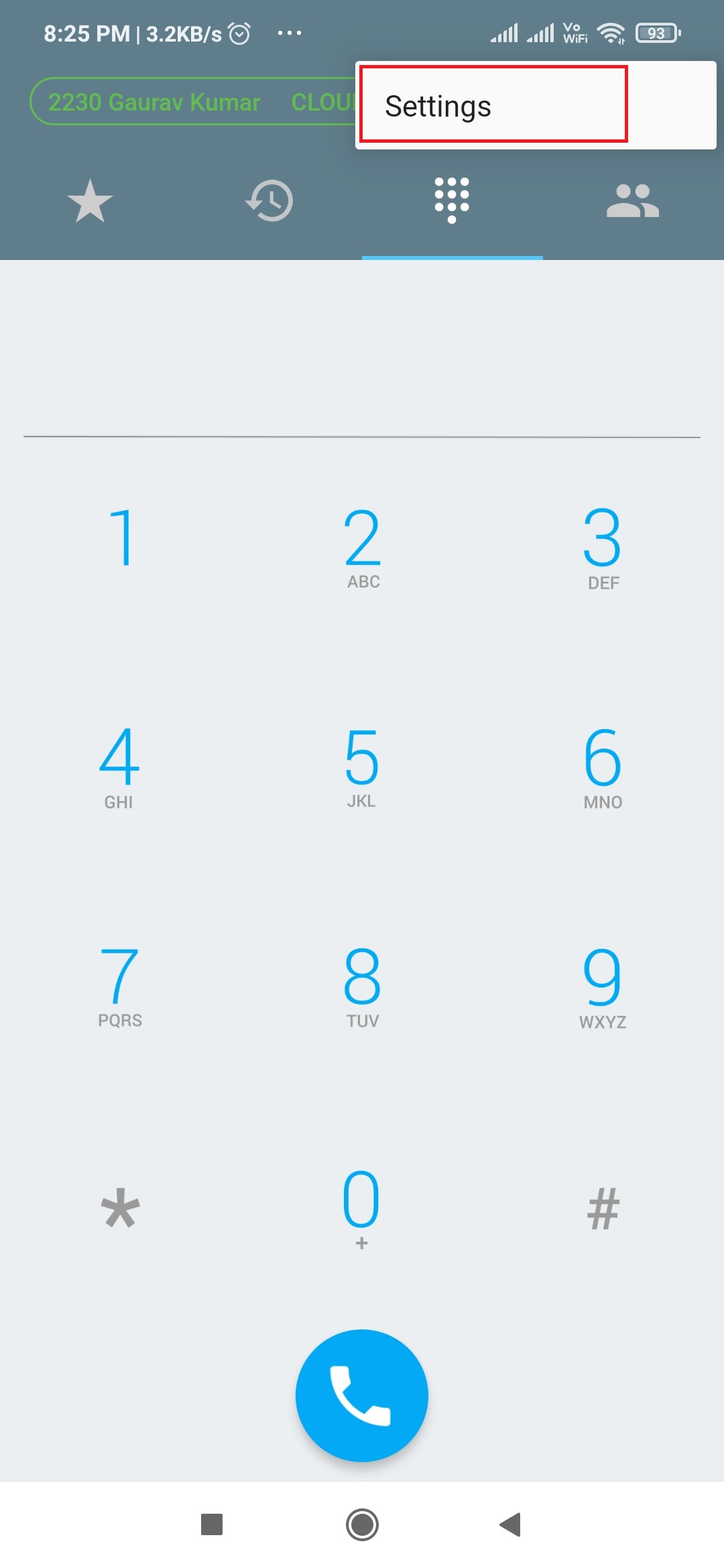
- Tab on Preferences

- Enable the Troubleshooting logs
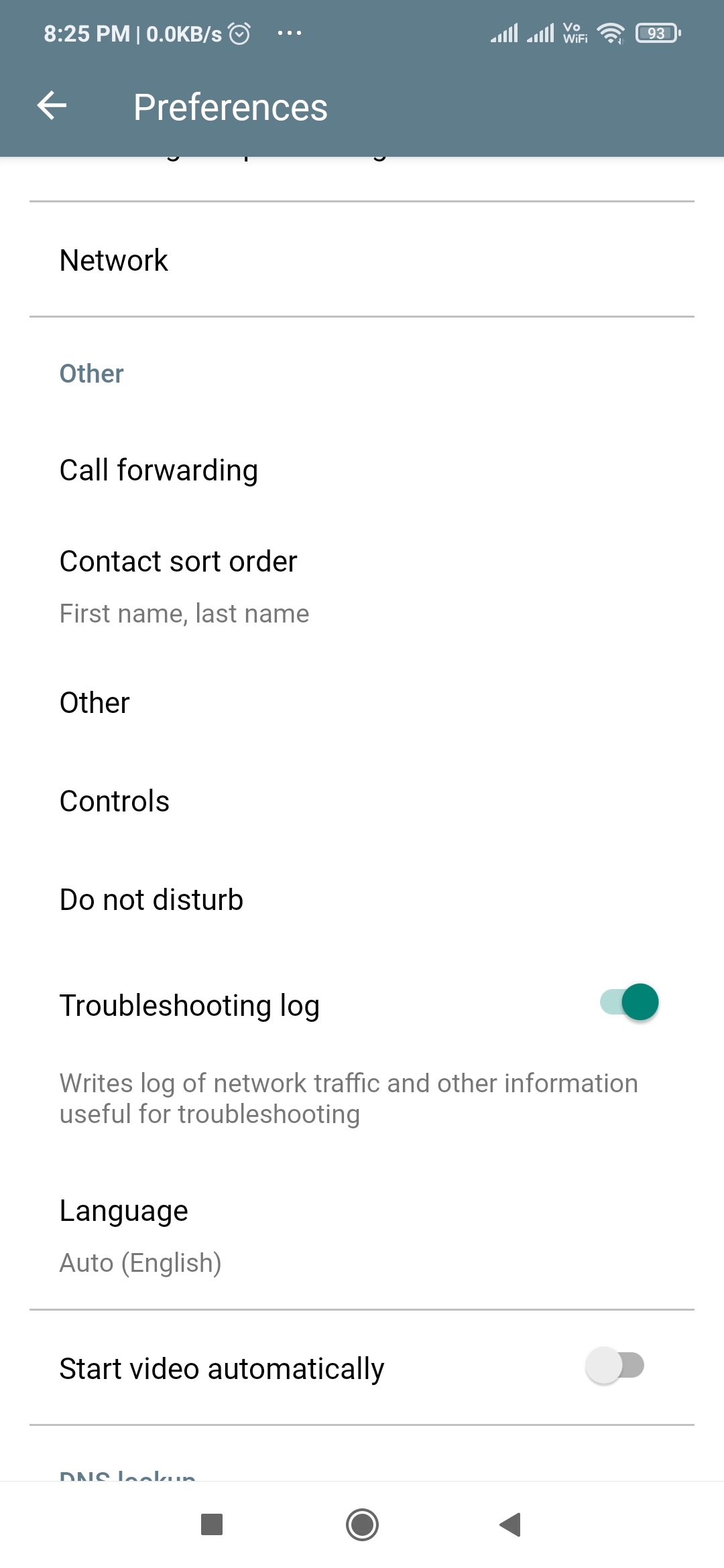
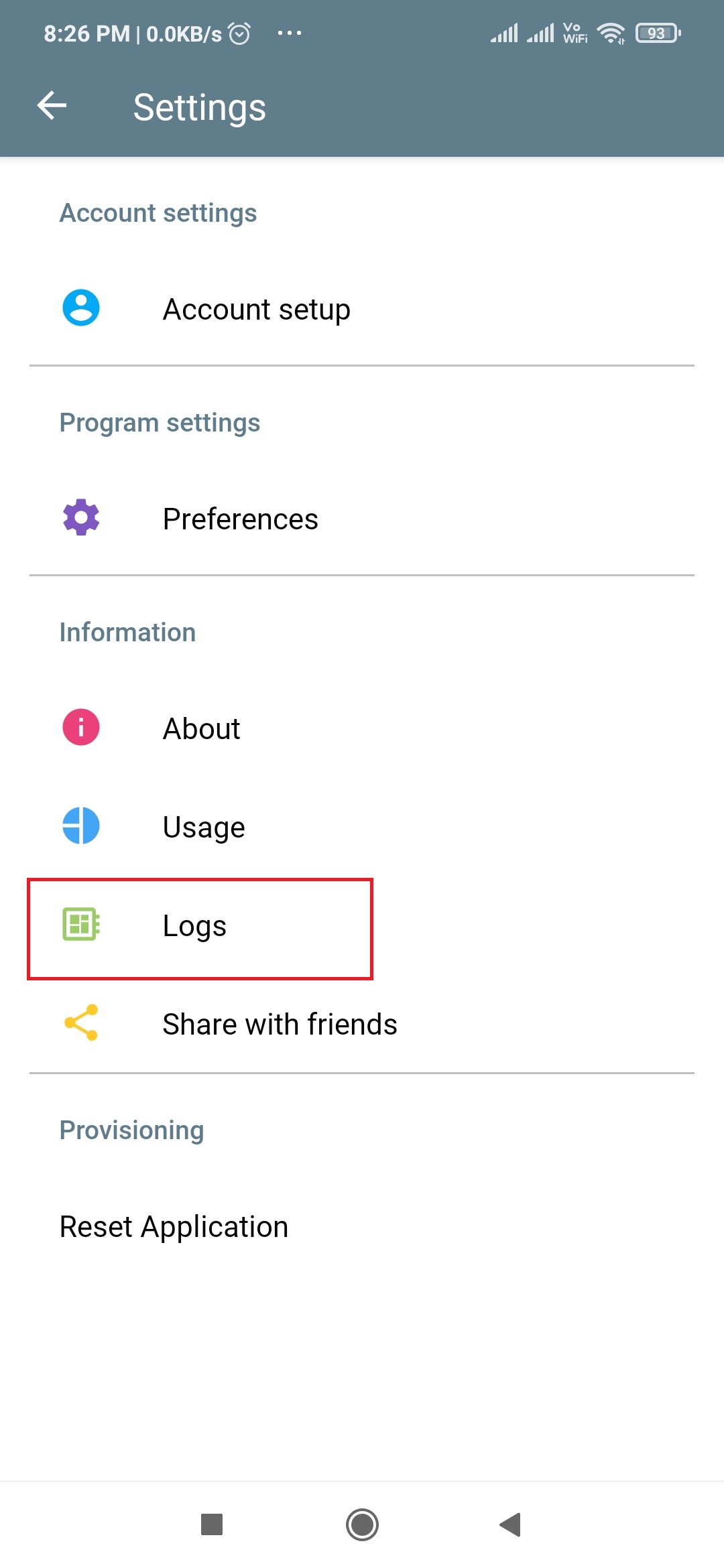
- Tap Back under the Setting, you will see the new option Logs Tap on that
- Tap on each tab (Device, SIP, Android) and share the logs with IPFINITY (see following steps)
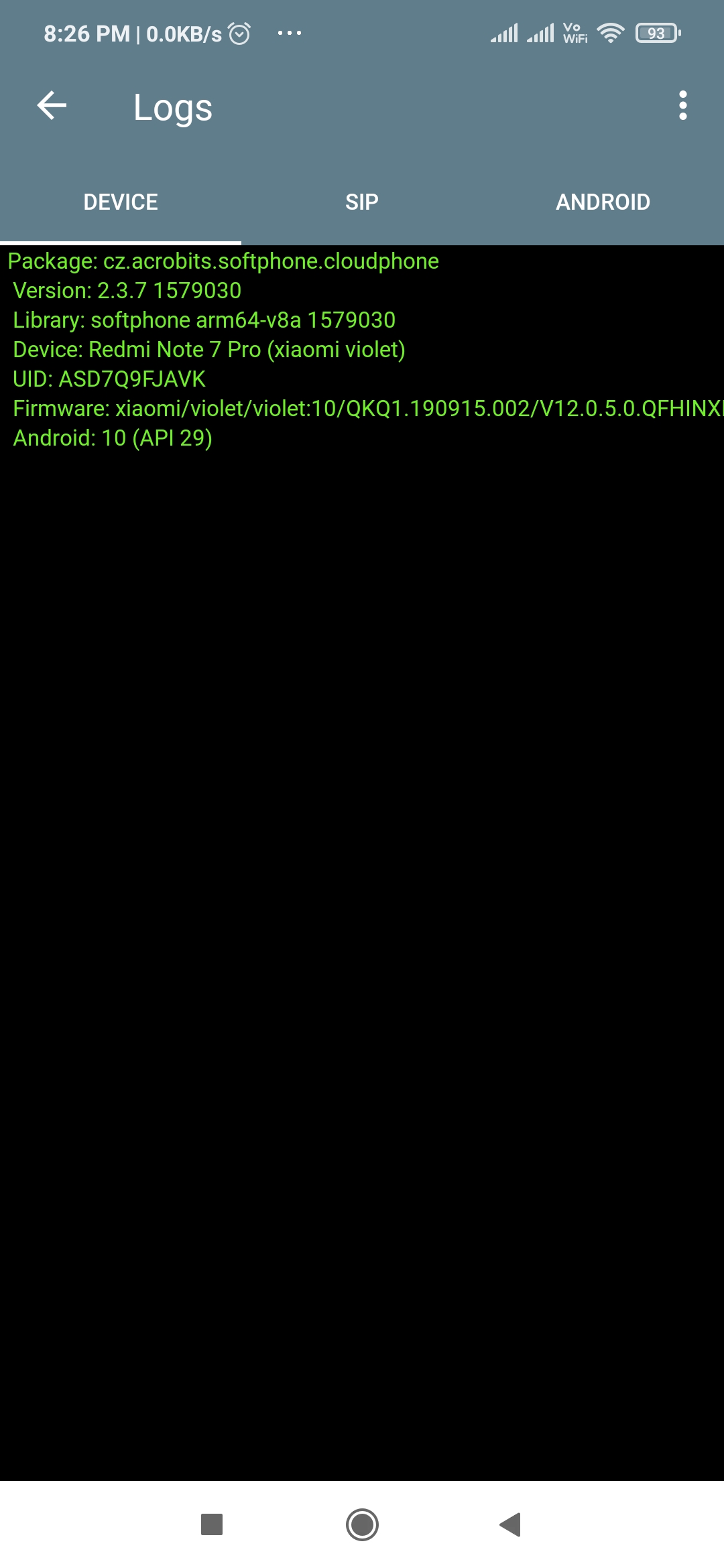
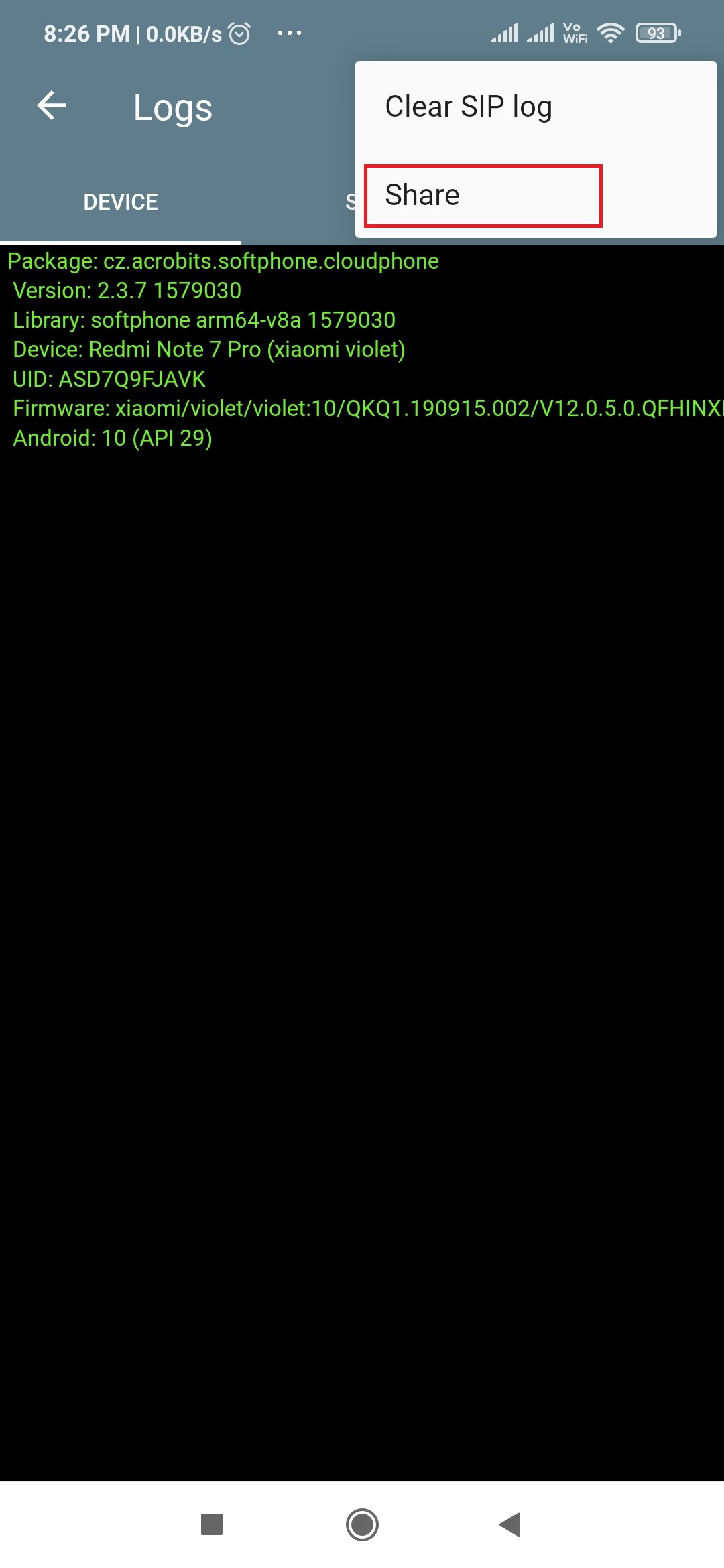
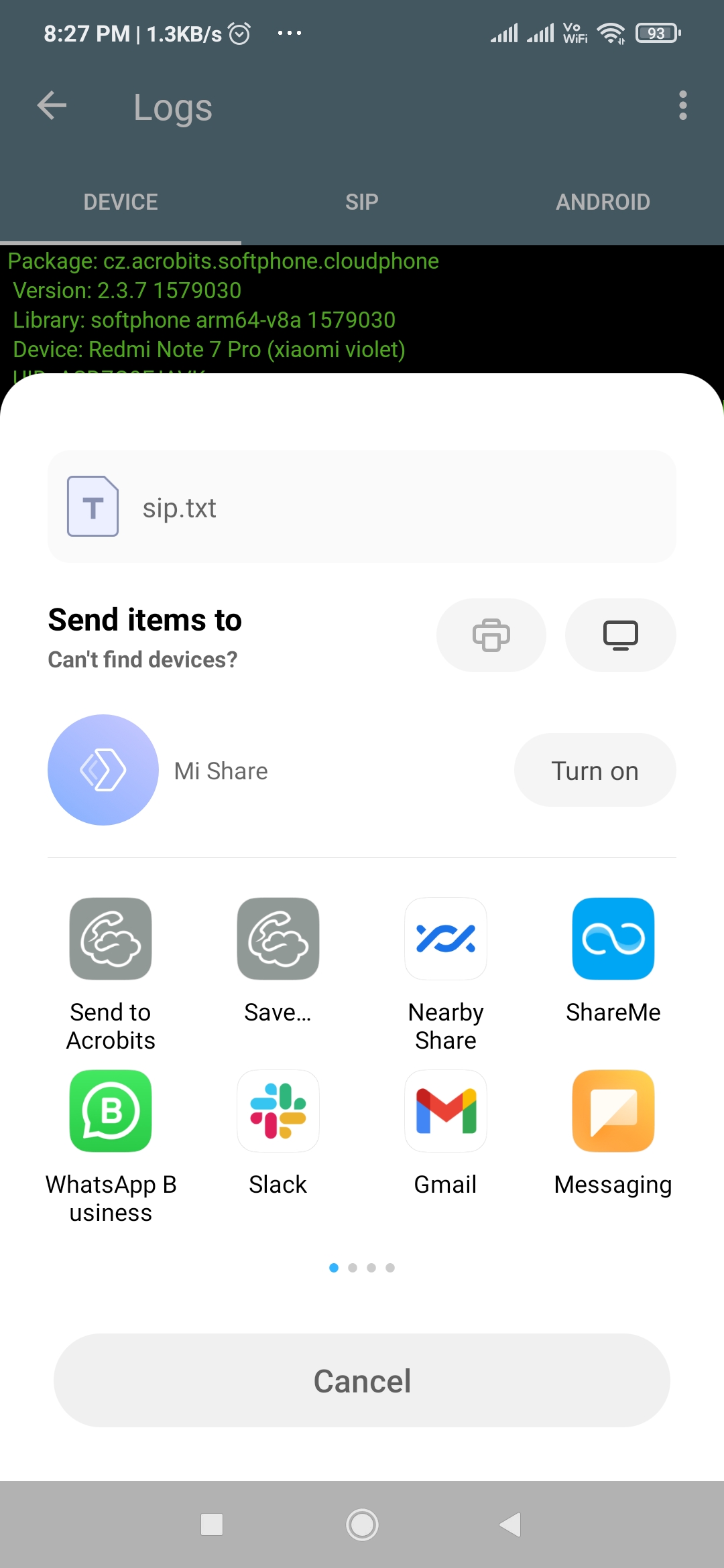
- To share tap the three dots on the upper right-hand corner and then tap Share
- Share the logs by emailing us at support@ipfinity.com
Subject should be (<Company name> <Log type> <User Name> )
(For example ABCCommunication SIP Sara)
Enabling Troubleshooting log: For iPhone (iOS)
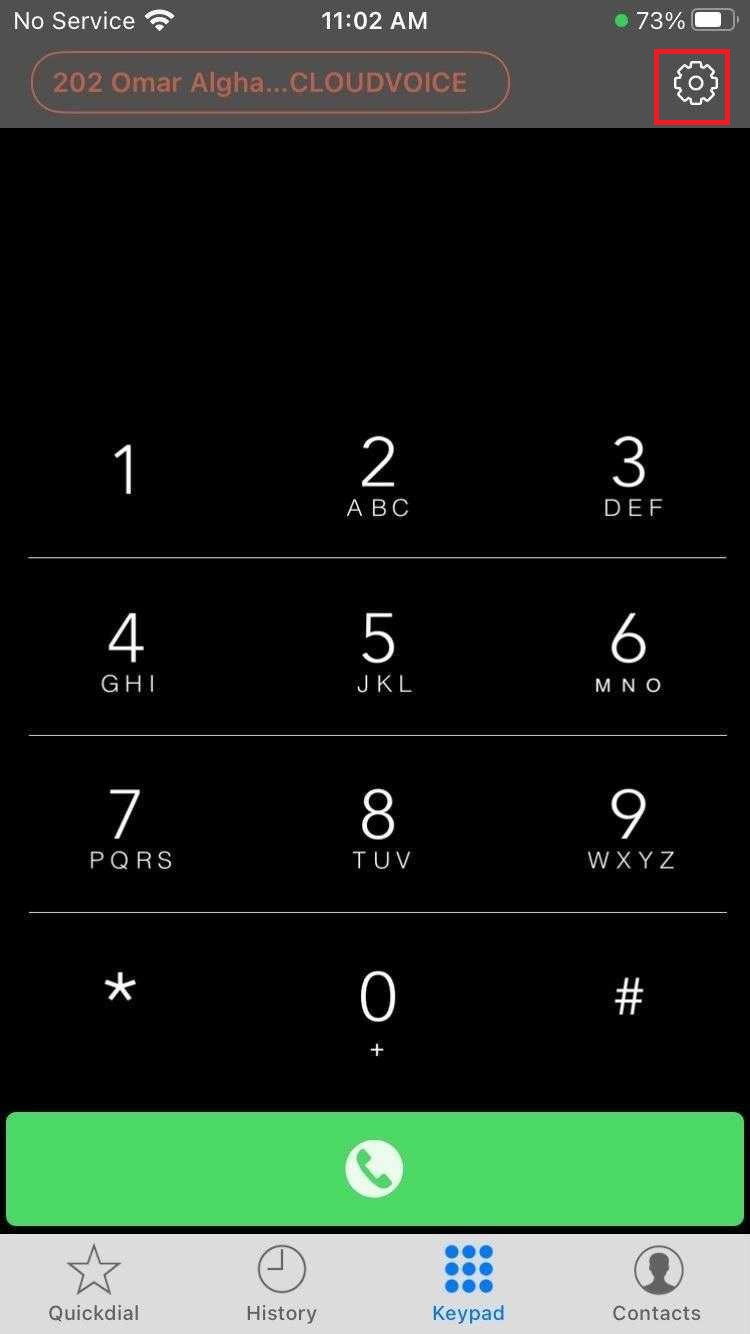
- Tap on gear icon for Settings
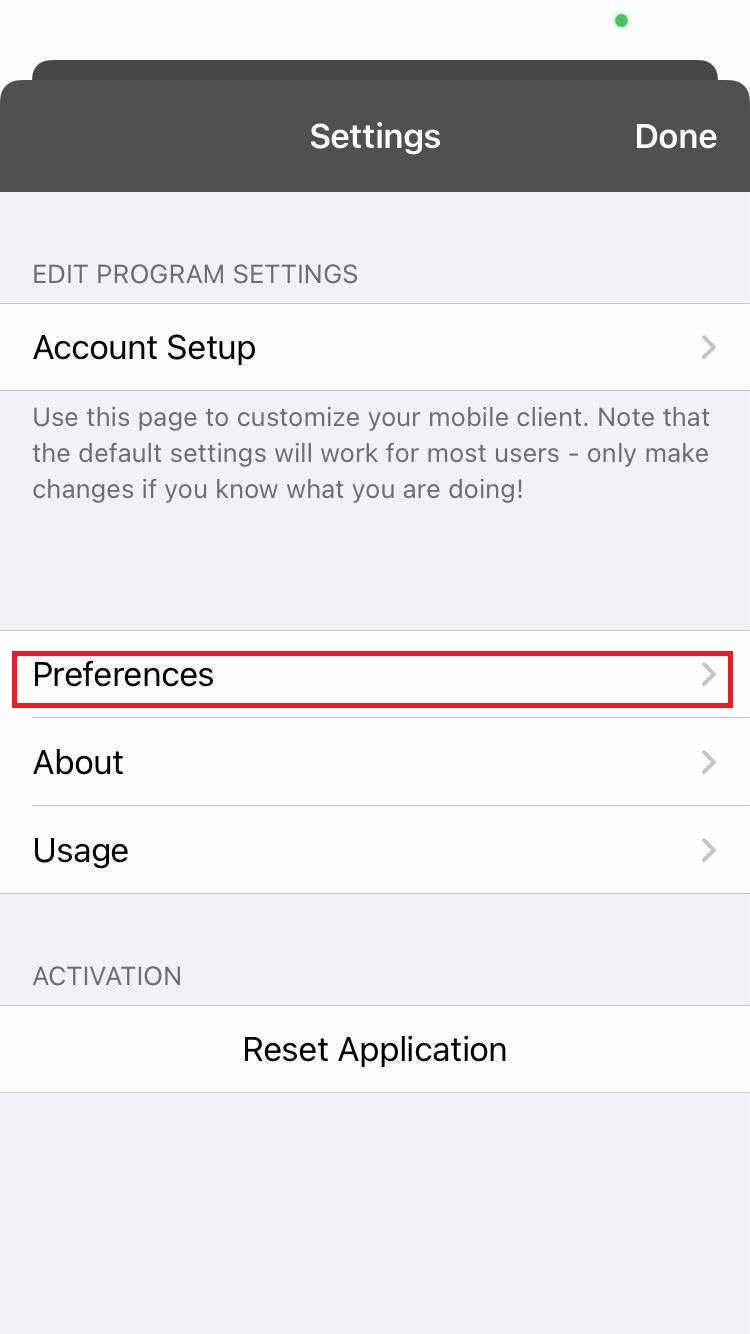
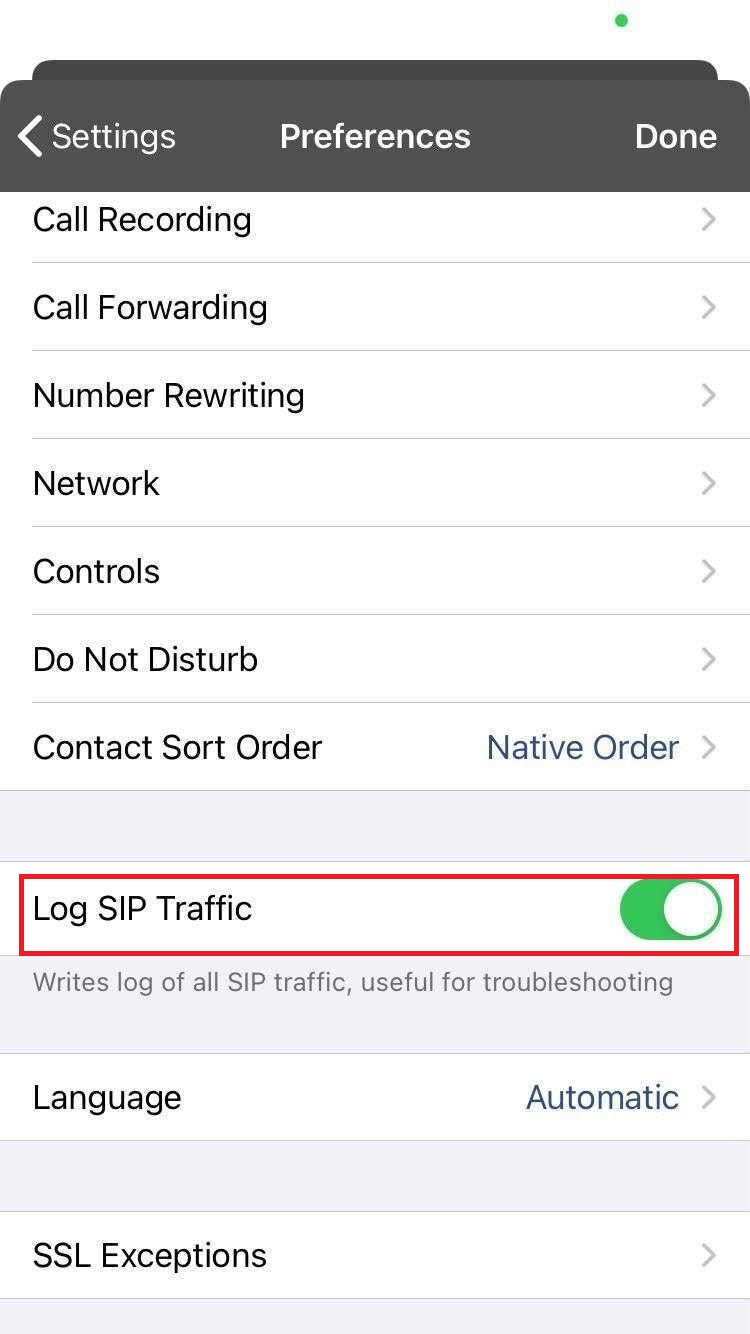
- Tap on Preferences
- Enable log SIP Traffic
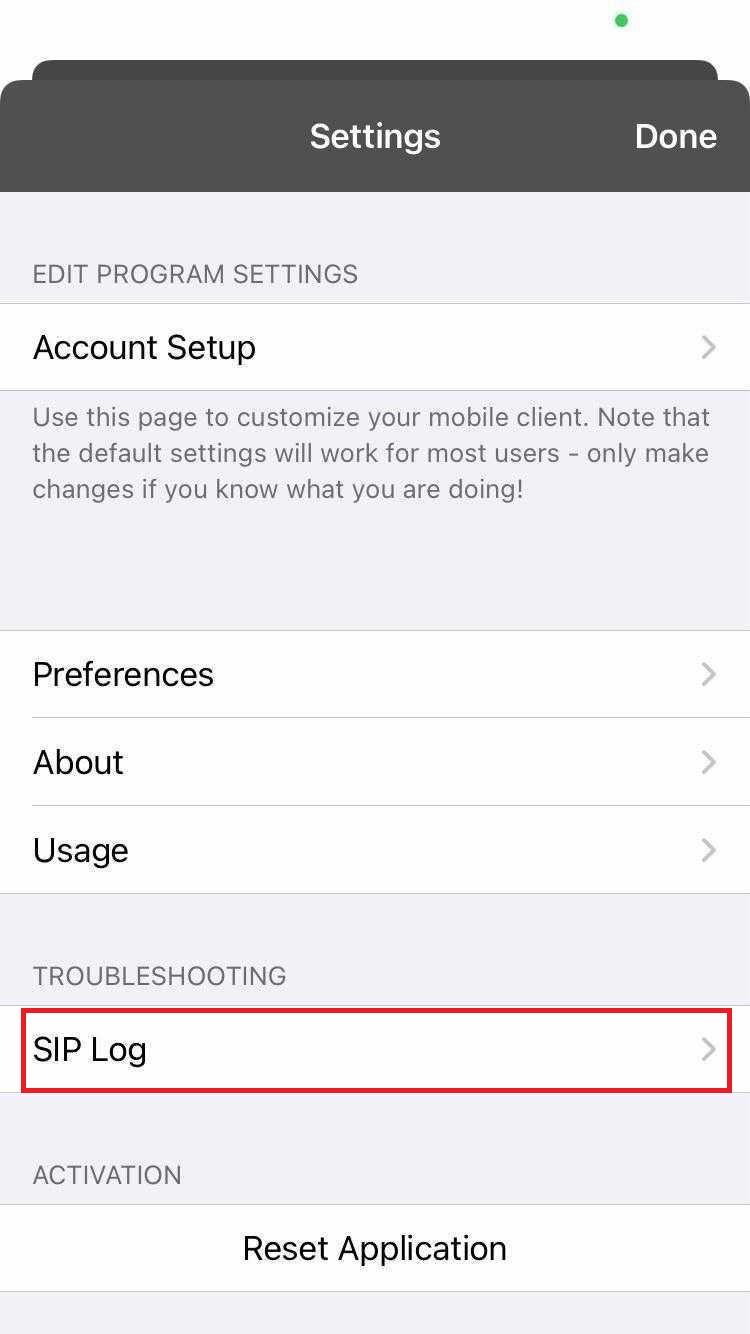
- Go back and tap on the SIP log
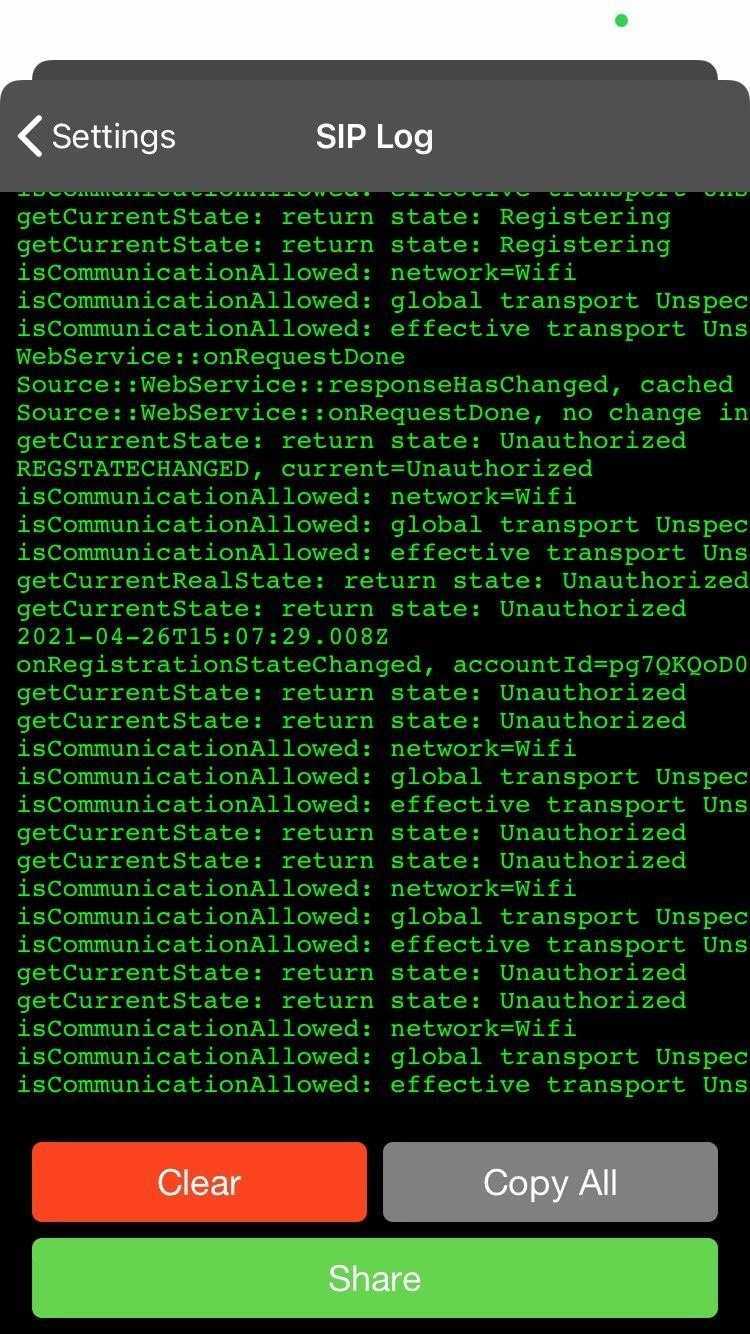
- Example screenshot of the SIP Log
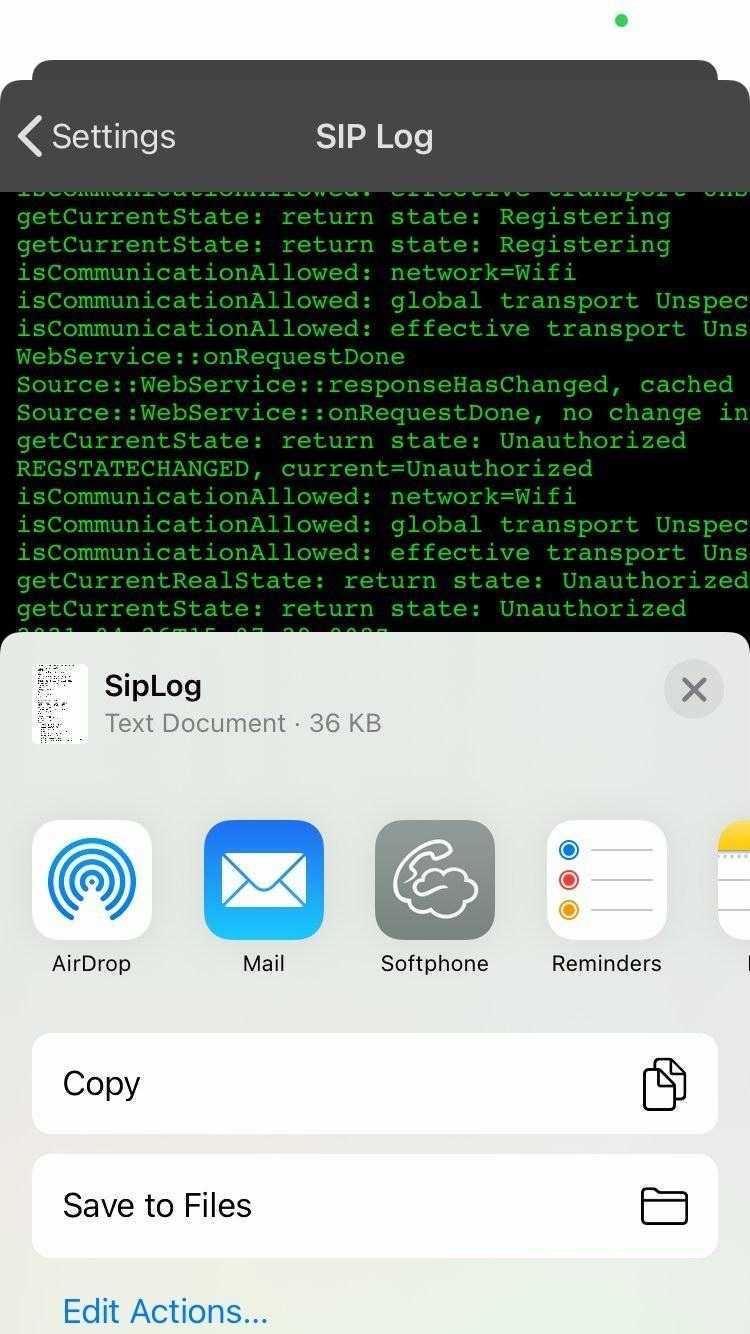
- Share logs by emailing us at support@ipfinity.com
Subject should be (<Company name> <Log type> <User Name> )
(For example : ABC Communication SIP Sara)
If you have any questions, please contact support@ipfinity.com or call us at (416) 900-1416 Ext. 2.
0 Comments