When your Wifi connection is not strong and it's affecting call quality, forcing the Cloud Softphone app to use Mobile Data will in many cases result in clearer call audio. Below is a quick guide to setting Mobile Data as the preferred method of connection. Keep in mind that the transferred data will be included in your Mobile Data plan.
Android
- Open Cloud Softphone App
- Select the 'three dot' menu on the upper right side of the screen
- Select 'Settings'
- Select 'Preferences'
- Select 'Network'
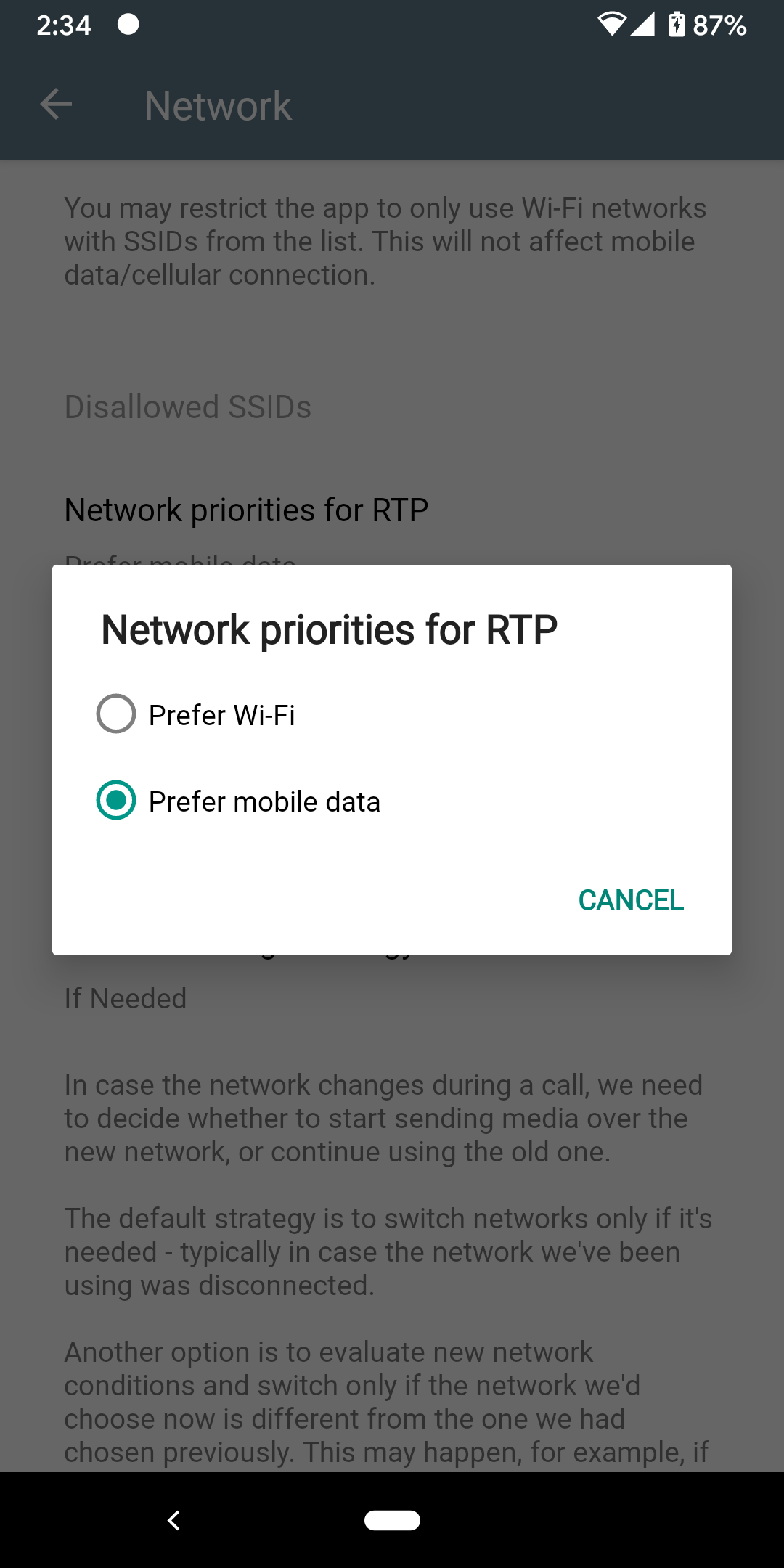
- Then click on 'Network Priorities for RTP' (select the bold text, not the greyed out paragraph beneath it)
- Finally, select 'Prefer Mobile Data'
Apple iOS
- Open Cloud Softphone App
- Select the 'gear icon' on the upper right side of the screen
- Select 'Preferences'
- Select 'Network'
- Then click on 'Network Priorities for RTP' (select the bold text, not the greyed out paragraph beneath it)
- Finally, select 'Prefer Mobile Data'
The final step for both types of devices should look like this:
0 Comments