IPFINITY Meet™ is compatible with Safari, Chrome, Firefox and Edge and works on MacOS, Windows, iOS and Chrome.
Because Meet runs inside the browser itself, using a browser-native technology called WebRTC, no additional downloads or apps are required! For best performance please ensure that your browser is updated to the latest version.
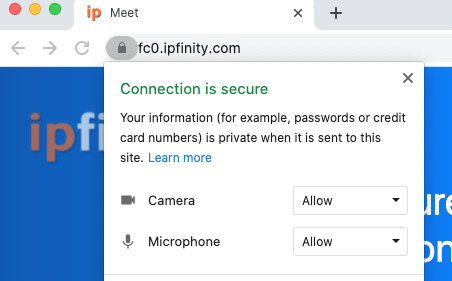
When joining a IPFINITY Meet™ Conference for the first time, you may be asked to allow your browser to access your microphone and camera. Please be sure to click allow when requested. You can access the camera/microphone permissions panel at any time by clicking the lock icon in the address bar.
At any time during the conference, you may adjust the settings if you need to. Microphone and playback levels can be tested, and your camera and microphone devices can be changed if you have more than one.
To bring up the A/V settings panel when you are in a meeting:
1. Click on the three small dots on the bottom right of the conference screen
2. Select Settings, and on the Settings panel
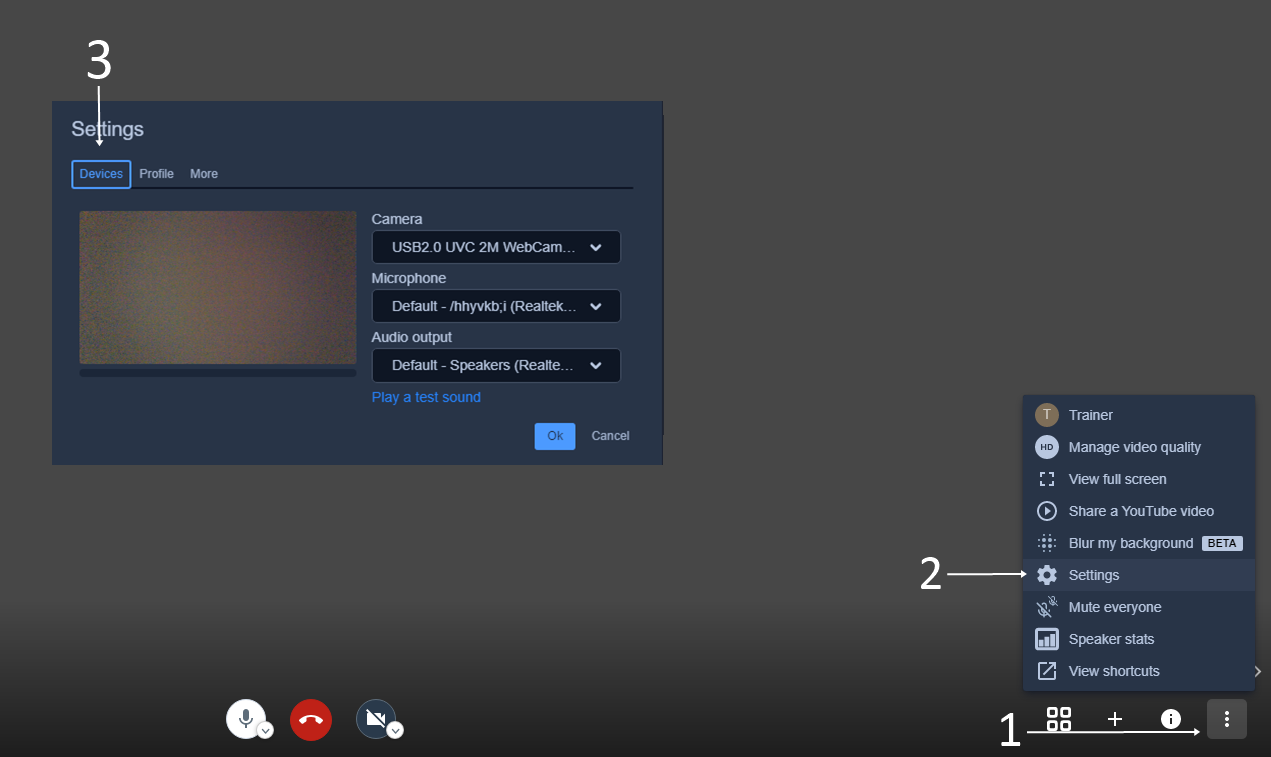
3. On the Devices tab, you will find the ability to select or change your audio/video settings and to preview them. Microphone pickup can be monitored via the bar-graph shown.
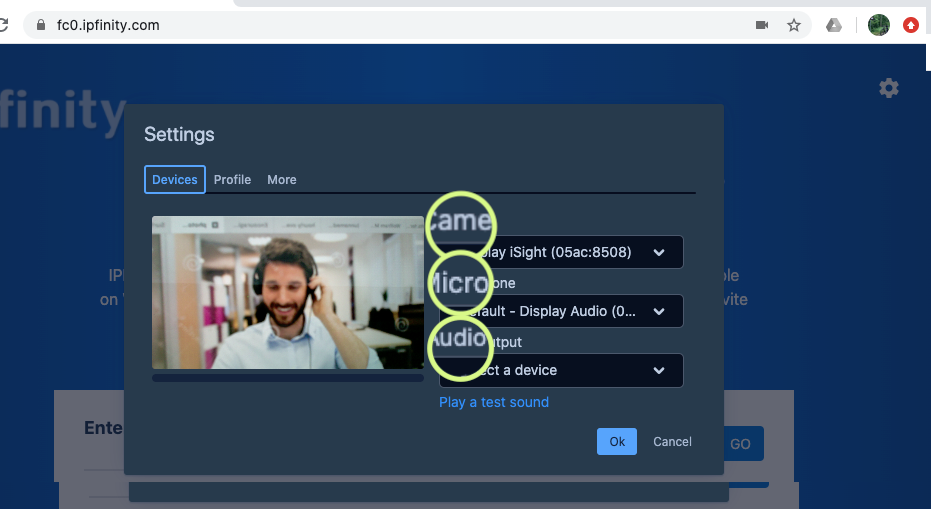
On-the-fly audio and video adjustments during a meeting
As shown in the image below, two small drop-downs will be presented next to the camera and mic mute buttons if applicable; you may use these at any time to change the active camera or mic.
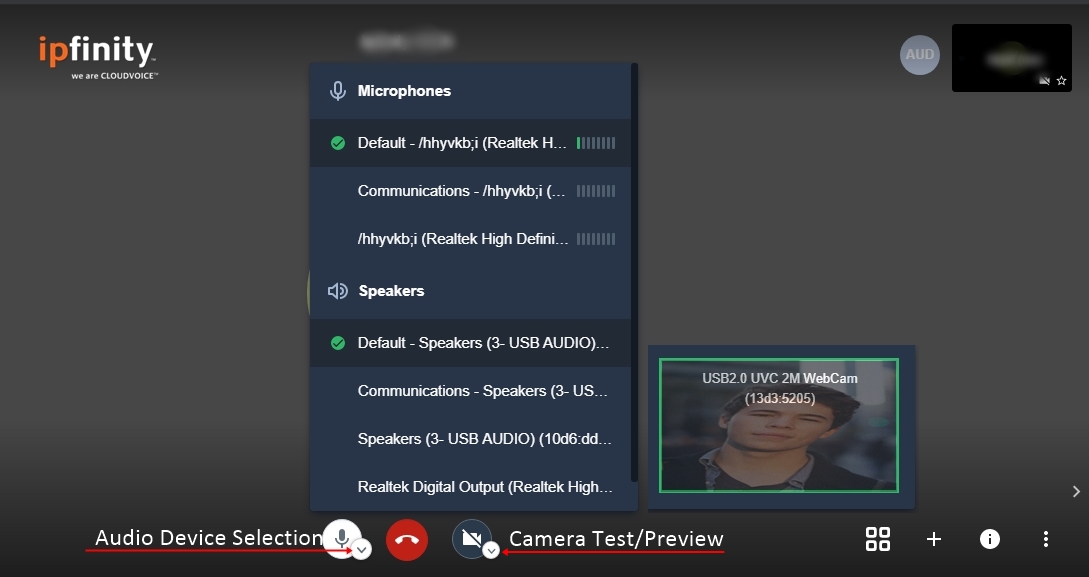
The device selection tool lets the user choose between built-in or plugged in microphones, headsets, and speakers available on the computer. Users can select their desired microphone and will be able to see a green bargraph when speaking, indicating volume level.
0 Comments