How to Set a Conference Room:
Step 1 – Start Chrome or Firefox on your laptop or Android device (or download and run the Jitsi app on your iOS device)
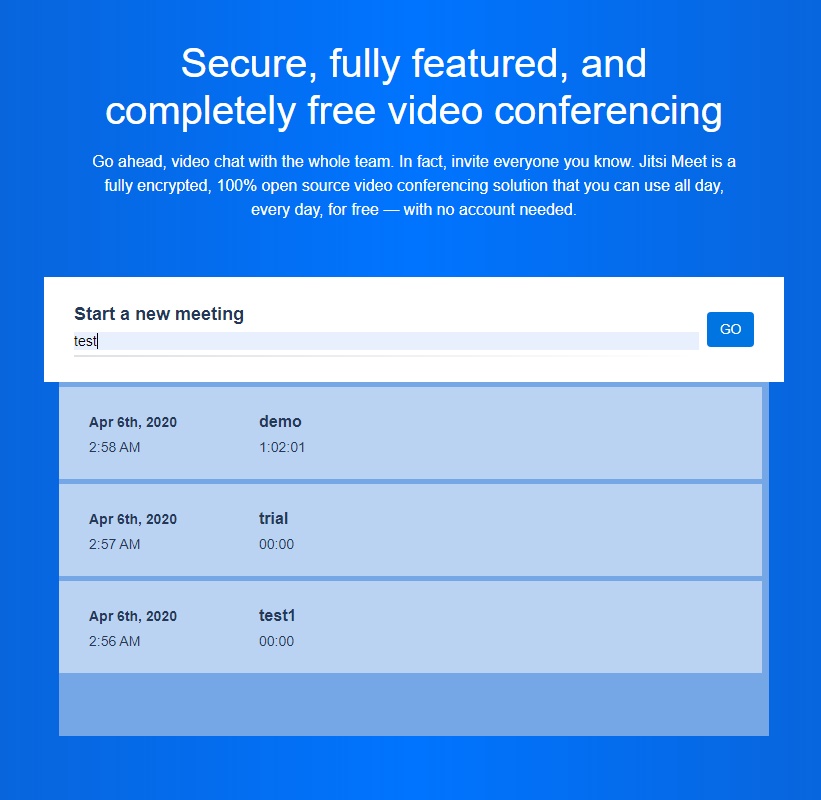
Step 2 - As a meeting administrator you can give your meeting a custom name or select from a previous meeting from the list.
Step 3 - If requested allow the browser to use your camera and microphone.
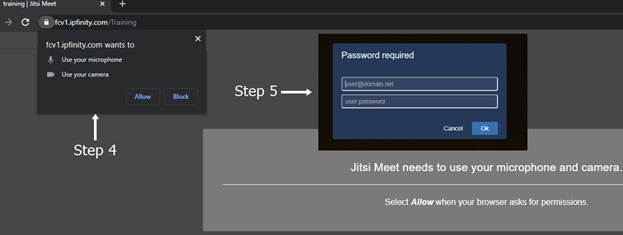
Step 4 – Login using your administrator credentials (Provided by IPFINITY)
Step 5 – Provide the meeting coordinates to your team (guest users). Guest users will be asked to wait until an admin has joined the meeting, at which point they will be logged in automatically. Administrators can provide the meeting link ahead of time. All participants use the same link but only administrators are able to log in using their administrator credentials.
How to Lock/Unlock the Conference Bridge (Optional for Admins only)
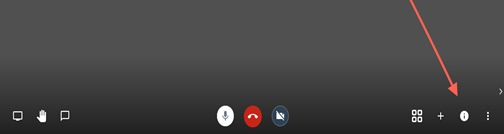
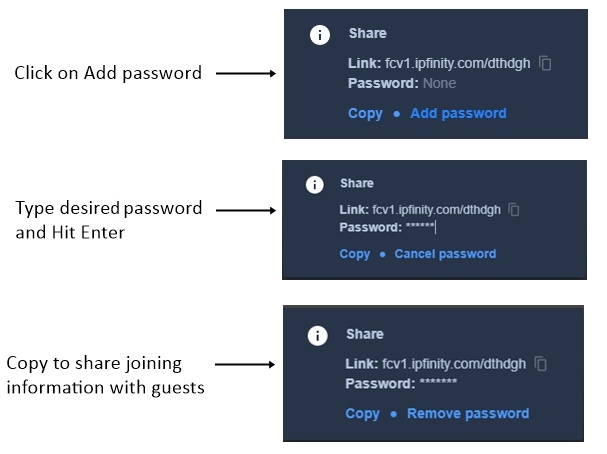
- Move your cursor to the bottom right of the window and click the "i" button will pop up showing the meeting link, along with the option to add a meeting password to secure the bridge. Adding a password will prevent anyone from accessing the bridge without the password. It is good practice to lock a meeting room after all the expected guests have arrived.
- Meeting passwords are one-time use passwords that expire once the meeting is over. Please use a different password for each meeting.
Guest Login:
Guests will be able to join the conference using the same link used by the administrator. If the administrator has locked the room, guests will be prompted for the password.
System Requirements:
Hardware and Software: Safari or Firefox on Windows 10, Mac OS, Chrome OS or Android device; or the Jitsi app on iOS devices (available from the Apple App Store)
Internet Requirement: Broadband connection with at least 2.5Mbps bandwidth in both directions.
0 Comments