How to “Kick” a User:
Once a meeting password is set, the admin will be able to “kick” users. It will also prevent users from “barging in”.
- Move the cursor to the lower-left side of the Specific User/Caller, a popup will appear providing with options “Kick Out” user, along with controls for muting, messaging, and volume.
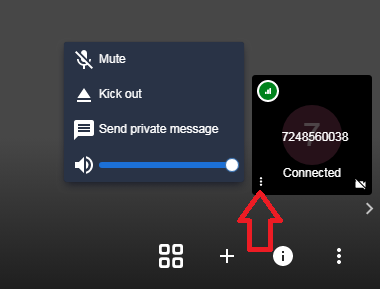
- The “Kick out” option will ask for confirmation before removing a caller from the conference.
- A periodic password change is recommended, and change it frequently if the privacy concern is imperative
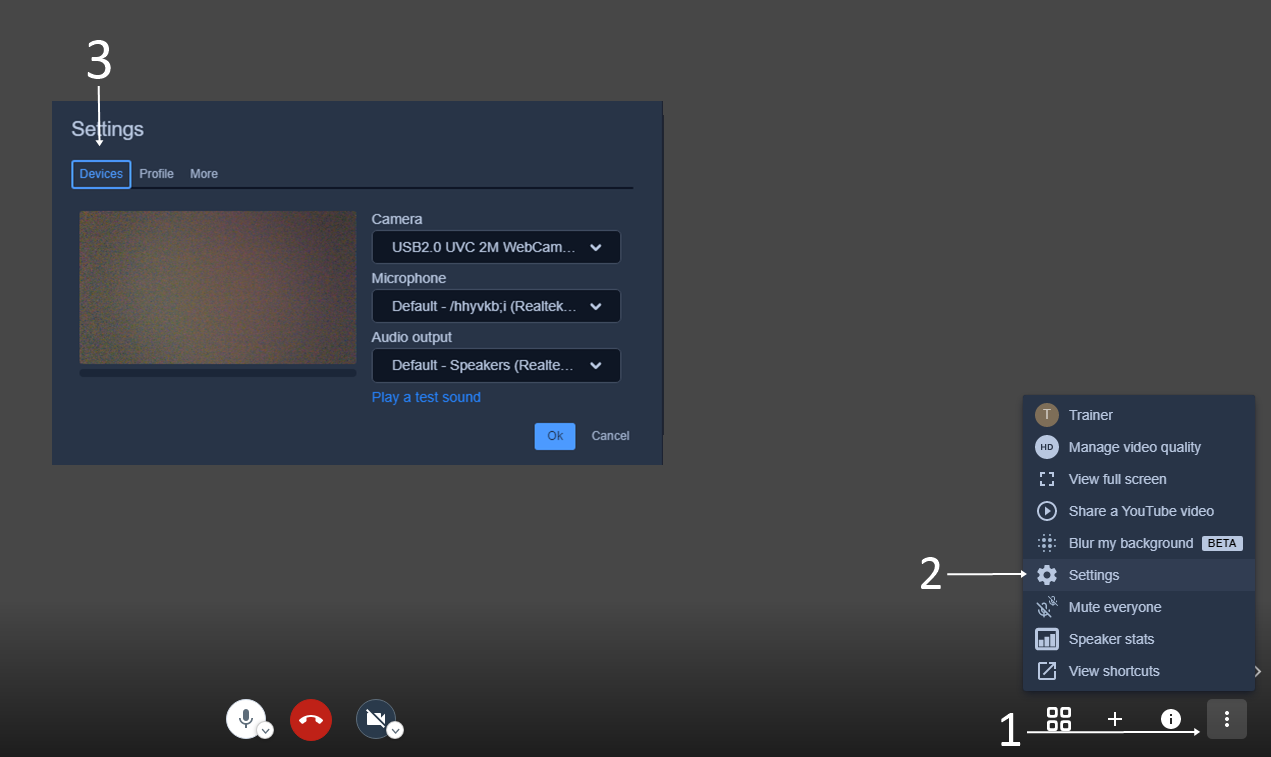
How to change Audio or Camera Settings during the conference:
Navigating through the 1, 2, and 3 options from the image below will show the Camera, Microphone, and Audio Input devices. This is helpful when the user has multiple Audio/Video Peripherals connected to the device.
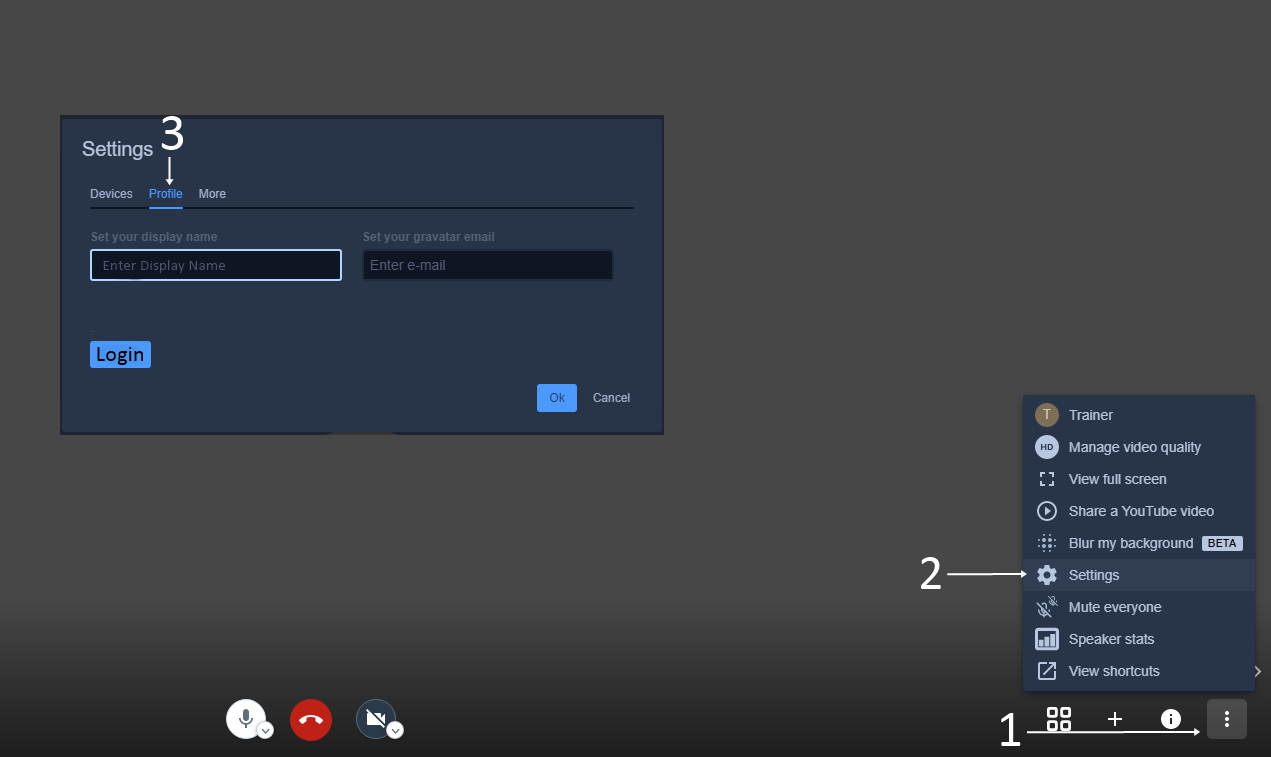
How to login as "Admin" when the conference is already hosted by another Admin:
- Join the conference as a "Guest" using the credentials provided by the host
- Click on the three options labeled as 1, 2, and 3 as shown on the image below and click on login (
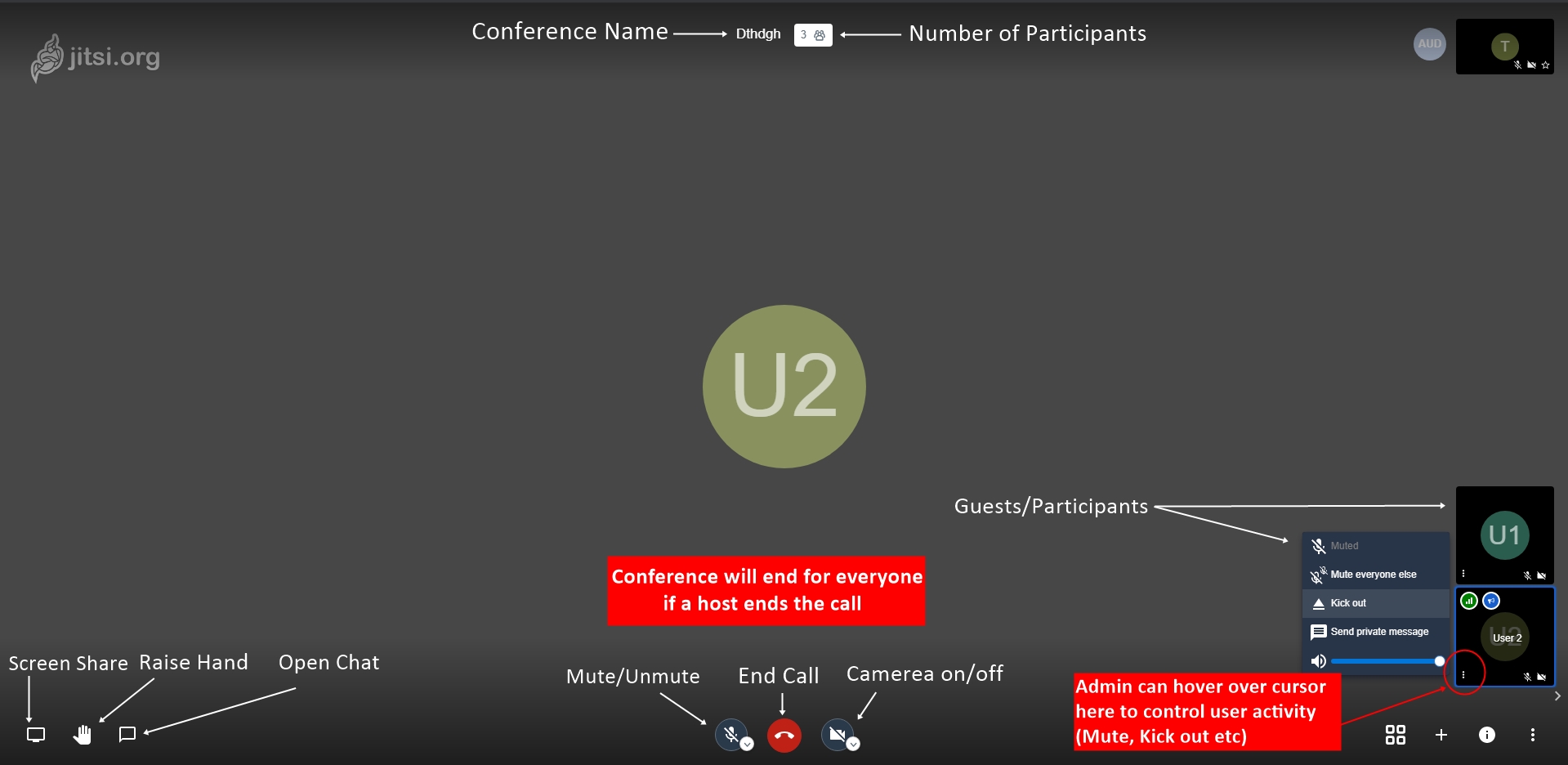
Navigation and Other options:
Click on the image below to download the high-resolution image or visit the link below:
https://ibb.co/SJ2gWxg
0 Comments