If the Telephone App is already Installed on Your Computer and has an account configured, skip to Step 3
Step 1: Install the Telephone App
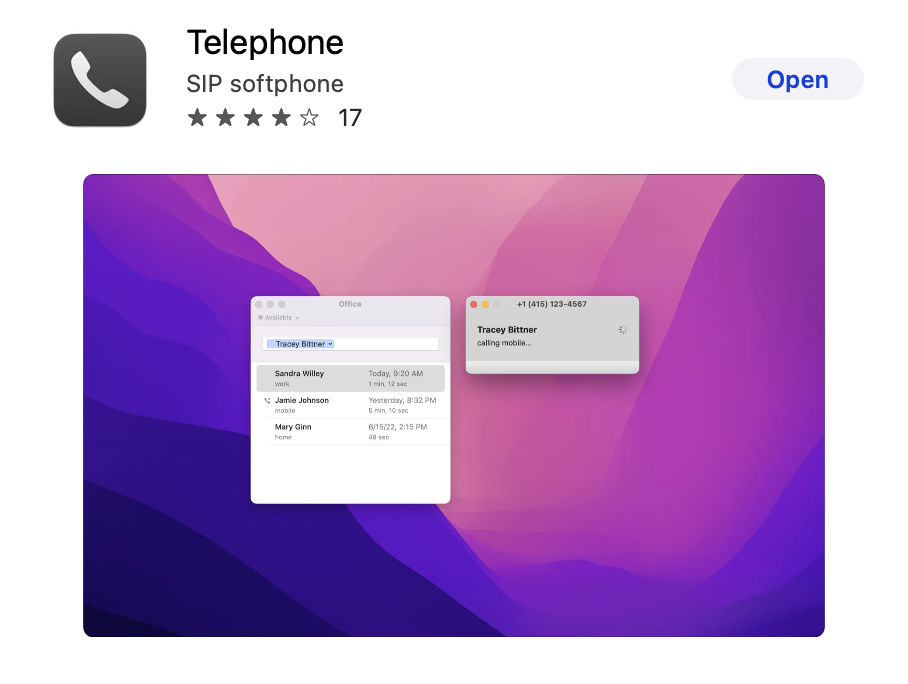
Please carry out the following steps to install the Telephone softphone on your Mac.- From the Mac App Store, download the Telephone app. Telephone is free to download.
Step 2: Open the Telephone App
- Once installed, you will be able to run the application from your Applications folder.
- The First Time you open the Telephone App, the following window will open.
- Fill in the fields in the window that appears with the following information:
- Full Name: [Your Full Name]
- Domain: Use the SIP Server Provided to You
- Username: Use the Username Provided to You
- Password: Password Sent via SMS/E-Mail
Once you Click "Done", the following window will appear :
Step 3: Add a New Account
Choose "Accounts" then press the (+) button.
In the pop-up that appears, enter the credentials as given below. Note that your password will be sent by SMS or Email. Please delete it after entering it into the pop-up.
Fill in the fields in the window that appears with the following information:
- Description: Ext # - CloudVoice
- Full Name: [Your Full Name]
- Domain: Use the SIP Server Provided to You
- Username: Use the Username Provided to You
- Password: Password Sent via SMS/E-Mail
Press "Done" after filling up the fields in the window. You will now see a window with a green Available icon.
Making a Call
To dial, simply enter a number in the box and press enter. When a call is in progress, you will see other options become available. A call history will show in the window.
0 Comments